Adding transactions
Record an expense or income in a few seconds.
- 1Choose Add transaction at the top of any page, or press N.
- 2Have the receipt? Choose Scan a receipt at the top and take a photo of it (or pick one, or a PDF). It’s read on your device in a few seconds (a crumpled, tilted or dim photo takes a little longer) and fills in the total, the HST as printed, the date, the merchant (filed the way you filed it before), the payment method when the card matches one of yours, and the purpose when the kind of spending is clear (a restaurant: your Meals purpose, if you have one). The notes get what was bought and the merchant’s details: address, phone, tax number, receipt number, who served you. What it filled in is shaded until you change it; check it and save, or choose Undo. It only fills in what’s still empty and what it read clearly: the photo is read several ways, and anything they don’t agree on is left for you. The receipt stays attached. A receipt added with Add a receipt photo or Attach a file further down is read the same way. Already typed some of it yourself? Then a receipt added later only fills the fields that are still empty: what you typed or picked stays as it is, and so do the type, date, business, currency and HST rate.
- 3Pick Expense or Income, enter the total amount (what’s on the receipt or invoice, tax included) and the date. The HST line underneath works out the subtotal and HST for you. Paid in another currency? Choose it beside Total amount (see Other currencies).
- 4Type the merchant (or who paid you). Names you’ve used before are suggested as you type.
- 5Choose a business, purpose and payment method. Pick + New… in any of them to create one on the spot (in your own lists).
- 6Any fees (card processing, a late payment fee…)? Choose Add a fee under the HST box. See Fees.
- 7Optional: Tags (under Notes) label it with anything that cuts across businesses and purposes, like a client, a project or a trip (“client-acme”, “Calgary trip”). Type a tag and press Enter or a comma; tags you’ve used before are suggested. Up to 10 per transaction.
- 8Optional: Add a receipt photo takes a picture or picks some from your library; Attach a file adds a PDF, Word (.docx), Excel (.xlsx) or OpenDocument (.odt, .ods) file from your files (up to 3 MB each), like an emailed invoice, a quote or a mileage log. Pick several at once; a transaction can have up to 10 files. A photo is shrunk on your device before it’s uploaded; other files are kept just as they are. Files with macros, and older .doc and .xls files, can’t be attached: save them as .docx, .xlsx or PDF first. Transactions with receipts show a 📎 (with how many when there are several) that opens the first; open the transaction to see them all, add more or remove some. Photos and PDFs open in your browser; Word, Excel and OpenDocument files download.
- 9Choose Save, or Save & add another to keep the form open with the same date, business, purpose, payment method and tags.
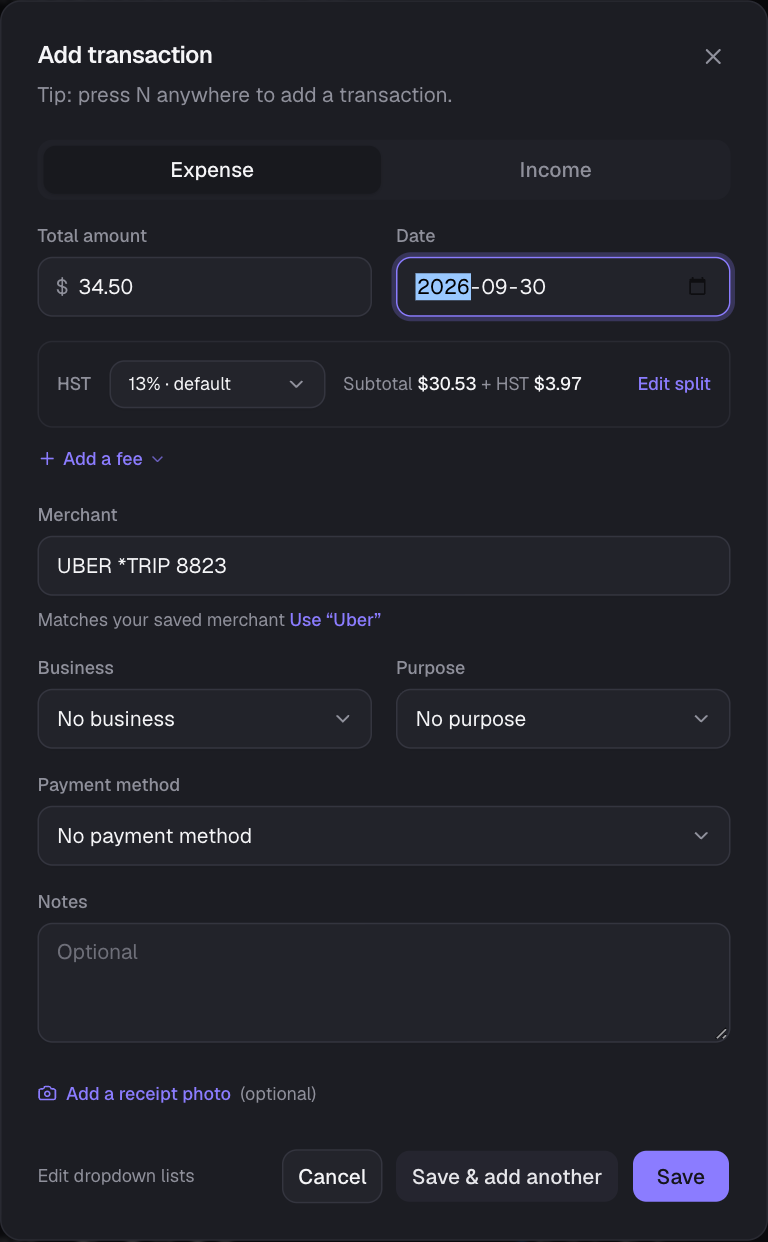
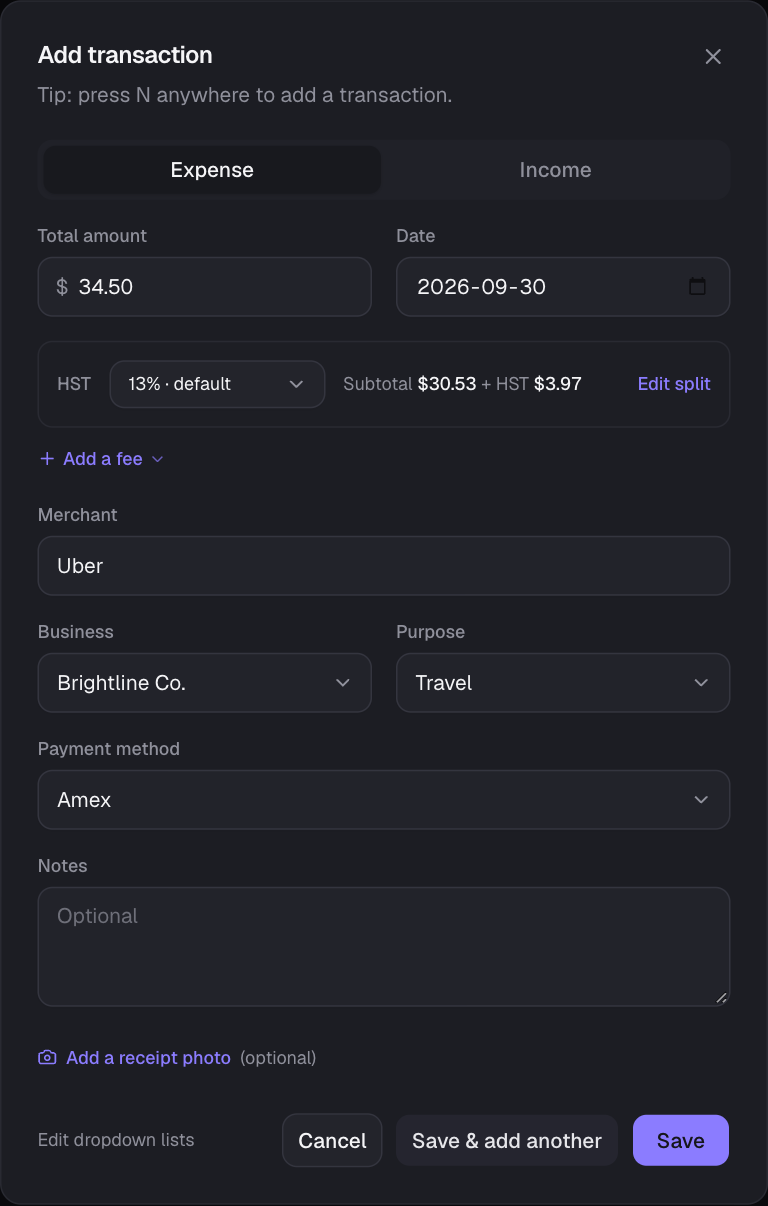
What fills in automatically
- Your defaults (Settings → Lists & defaults) pre-fill type, business, purpose and payment method on every new transaction.
- When you pick a merchant with saved settings, its business, purpose, payment method, type and HST rate replace the defaults. A saved HST rate stays even if you then change the business.
- For other merchants, The Money Tracker reuses how you filed them last time (including the HST rate, if one was recorded).
- If you type bank-style text that matches a merchant’s alias (e.g. “UBER *TRIP 8823”), you’ll see Use “Uber”; one click cleans the name up and applies its settings.
- Anything you’ve chosen yourself is never overwritten.
Adding to a business someone shared with you
Pick it in Business; shared businesses are grouped under “Shared by …” and show your role. The transaction goes into the owner’s books, so Purpose and Payment method switch to the owner’s lists (a note in the form says so) and the HST rate follows that business. You can’t create new list items in someone else’s lists; ask the owner to add them.
Calculations, refunds and fee-only entries
- Type a calculation in any amount: 1500-477, (120 + 80) × 1.13 or 3 * 19.99. Use + − × ÷ (or * and /) and brackets; × and ÷ are worked out before + and −. The result shows at the end of the field (= $1,023.00) and is what’s saved and listed. Open the transaction later and you’ll see the calculation again, so you remember how you got there.
- On a phone, a row of + − × ÷ ( ) keys appears above the field while you type an amount.
- Negative amounts record money coming back: a refund of an expense (−20) or a reversed payment on income. The HST is negative too, so a refunded purchase takes its HST back off what you paid. Refunds show as money in (+$20.00) in the list.
- A total of 0 is fine when a transaction is only a fee, e.g. a $50 wire fee: enter 0 and add the fee. See Fees.
Tip: Amounts also accept “1,234.50”, “$59.99” or “12,5”. Choose Expense or Income to set the direction.
Still stuck? See Troubleshooting, or contact the person who runs this site.