Account settings
Settings → General.
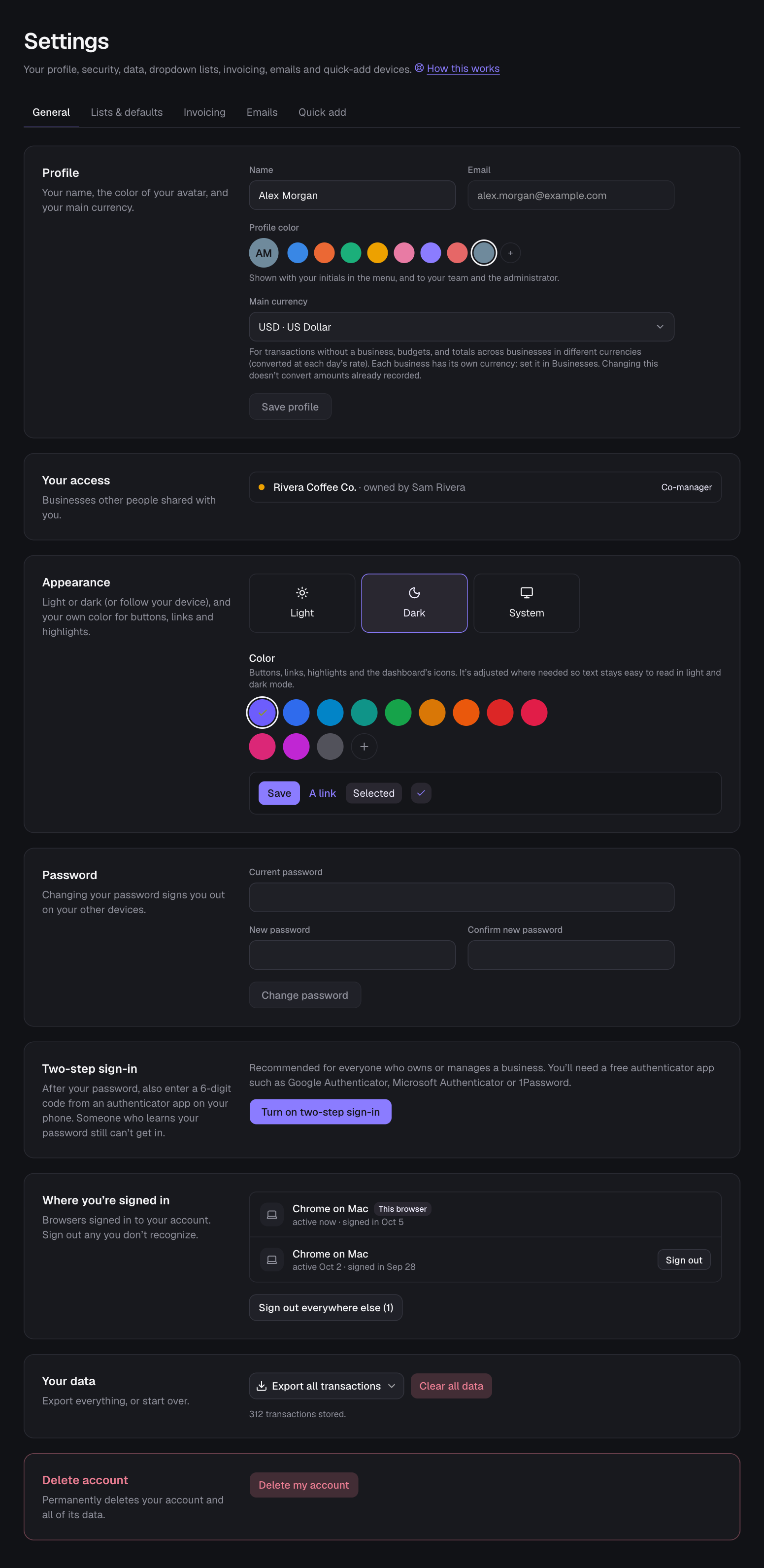
- Profile: your name, your profile color (the circle with your initials in the menu, also shown to your team and the administrator; pick one of the colors or any color with +) and your main currency (every ISO currency is available): for transactions without a business, budgets, and totals across businesses in different currencies. Each business has its own currency (see Businesses in other countries). Changing it doesn’t convert amounts.
- Appearance: Light, Dark or System (follows your device; also in the account menu, your avatar at the top right, and the sun and moon switch at the top). The Money Tracker starts light; what you choose is kept with your account, so it stays that way on every device you sign in on until you change it. And your Color: the default violet, one of the colors shown, or any color with +. Buttons, links, highlighted menu items, the logo and the dashboard’s icons take it right away, in light and dark mode, on every device you sign in on (Quick add too). So do the PDFs you download (reports, transaction lists, the year-end summary) and your report and alert emails. Where a color would be hard to read (white text on yellow, say), it’s made darker or lighter just enough to stay readable, on screen and in print.
- Emails (its own tab): scheduled reports with a PDF, over-budget and large transaction alerts, and plan renewal and HST filing reminders. Nothing is sent unless you turn it on. See Email reports & alerts.
- Invoicing (its own tab): your logo and details on the invoices you send (the logo goes on your reports’ PDFs too). See Invoicing below.
- Password: change it with your current password; other devices are signed out.
- Two-step sign-in and Where you’re signed in: see Security.
- Your access (when someone has shared a business with you): each business, its owner and your role.
- Your data: export everything (CSV or PDF), or Clear all data (removes all transactions, invoices and invoicing details, lists, merchants, budgets, recurring payments and your businesses, so anyone you shared them with loses access; your account stays).
- Delete account: permanently removes your login and all your books after you confirm your password. Entries you added to other people’s businesses stay in their books.
- Quick add tab: connect and manage devices (see Quick add).
Invoicing
Settings → Invoicing (owners) is what your invoices show, for each business and for your own books. Everything is optional; a note at the top says what Canadian invoices need (your business’s name and HST number from $30, your address too).
- On your invoices: your logo (PNG, JPEG or SVG, made small for you), the name, address, email, phone, website and HST number.
- Getting paid: how customers pay you (e.g. Interac e-Transfer to your email), when new invoices are due (on receipt, 15, 30 or 60 days, or no due date) and the message every new invoice starts with.
- Numbers and look: how numbers start and the next one (INV- and 1001), the color of headings and lines (the business’s color to begin with) and the paper (Letter, usual in the US and Canada, or A4).
- Preview a sample opens a made-up invoice with your details, to check how they look.
Co-managers make invoices with the details their business’s owner set.
Still stuck? See Troubleshooting, or contact the person who runs this site.