Recurring payments
Subscriptions, rent, payroll and retainers are recorded for you on every due date, paid from the card or account you choose.
Set one up
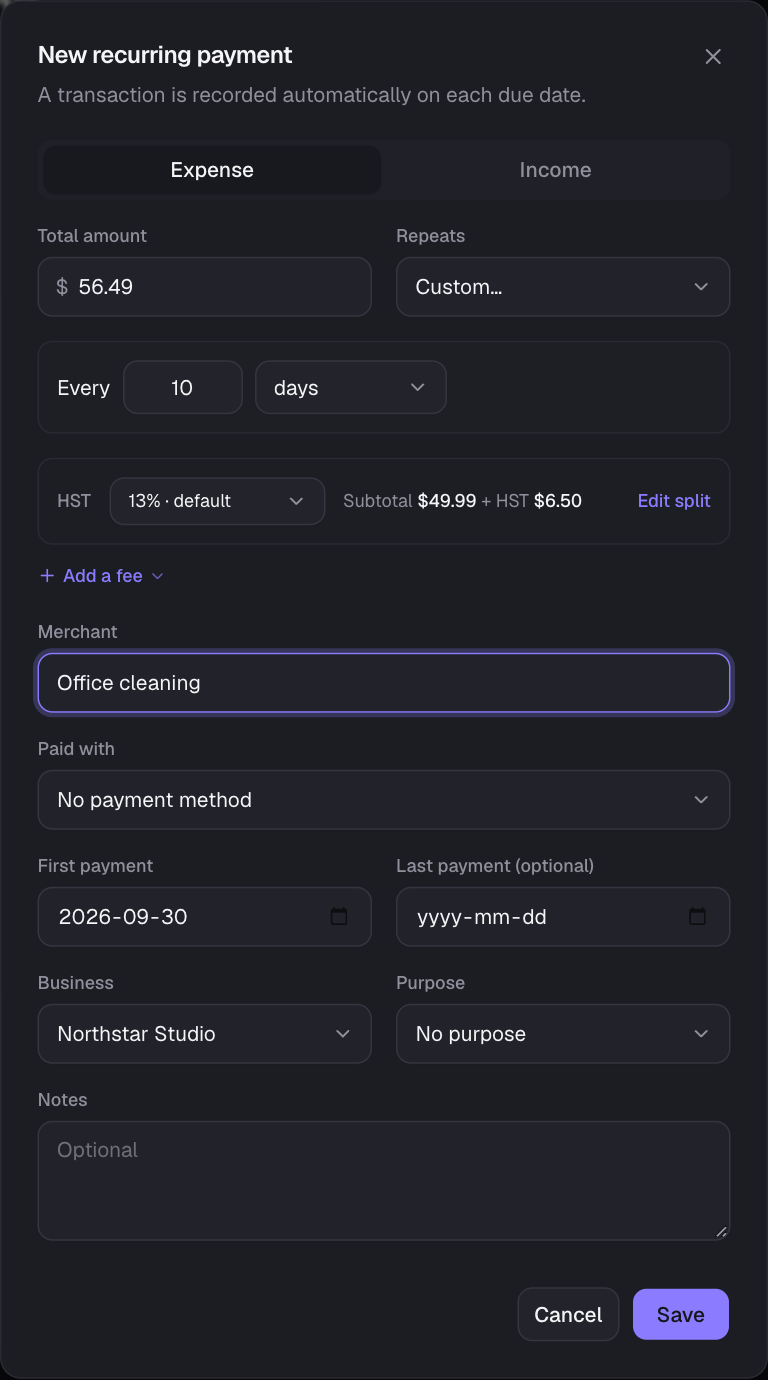
- 1Go to Recurring and choose New recurring payment (or use Make recurring… on an existing transaction).
- 2Enter the total (its HST is worked out and saved with it), merchant and Repeats: Daily, Weekly, Every 2 weeks, Monthly, Every 3 or 6 months, Yearly, or Custom for any “every N days/weeks/months/years”.
- 3Choose what it’s Paid with (or paid into, for income) from your payment methods, or create a new one.
- 4Set the First payment date and, optionally, a Last payment date. Optional Tags go on every payment it records.
- 5If the first payment is in the past, tick Also record past payments to fill in the history, or leave it off if you’ve already entered them.
Find, filter and sort
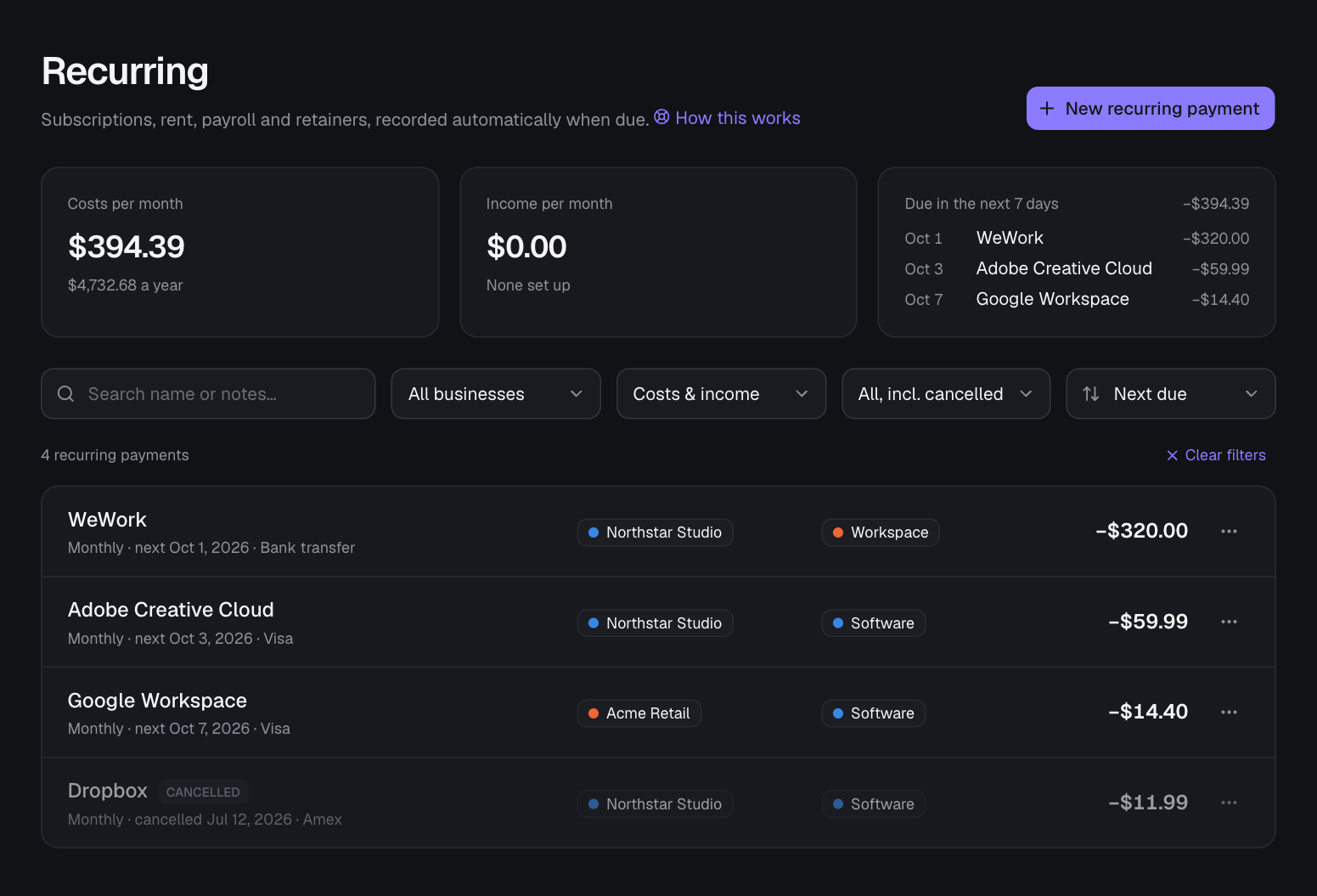
- Search by name or notes, and narrow the list by business (or “No business”), costs or income, and status: active & paused (the default), only active, only paused, cancelled, or everything.
- The figures at the top follow the business, type and search you pick. For example, choose one business to see what its subscriptions cost per month and per year, and what’s due in the next 7 days.
- Sort by next due date, monthly cost (a yearly payment counts as a twelfth), amount or name. Running payments always come before paused and cancelled ones.
- Your choices stay while you move around the app, and Clear filters goes back to the full list.
Pause, cancel or delete
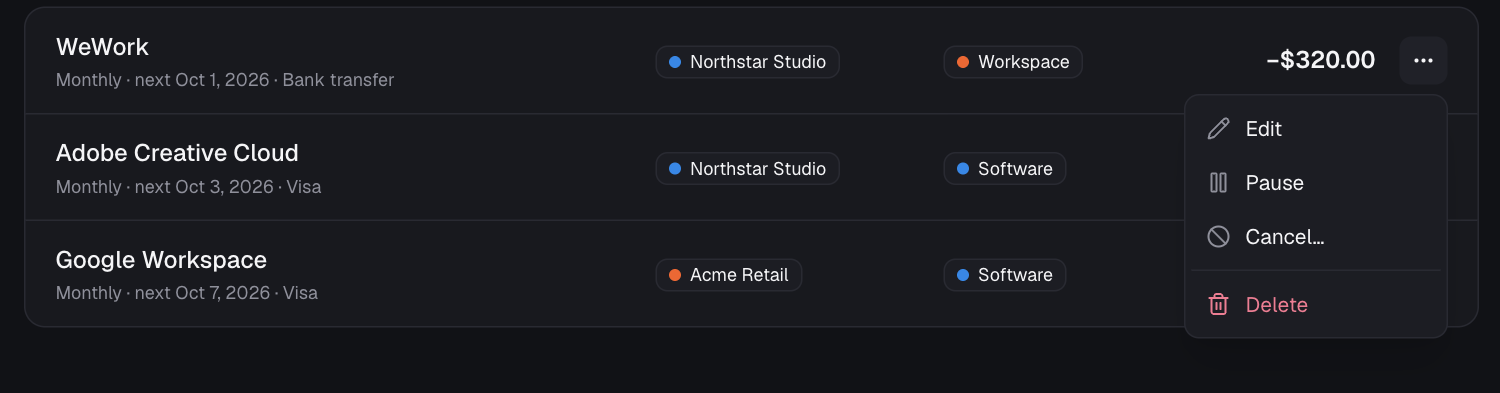
- Pause: stops temporarily. Resume continues from the next due date; payments missed while paused aren’t created.
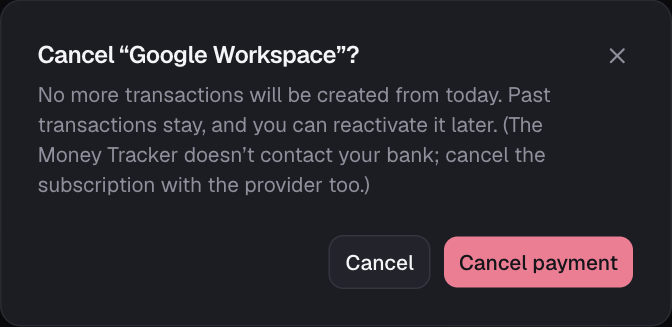
- Cancel…: stops for good from today. It leaves the main list (set Status to Cancelled, or click “cancelled” under the filters, to see it) with its past transactions intact, and you can Reactivate it later.
- Delete: removes it completely. Optionally also delete the transactions it created.
- Month-based schedules stay on their day: a payment on the 31st lands on the 30th or 28th in shorter months and returns to the 31st after.
- Shared businesses: co-managers can set up and manage recurring payments for businesses they co-manage; they’re recorded in the owner’s books and both see them. Employees can’t create recurring payments.
Heads up: The Money Tracker records payments; it doesn’t charge cards or contact your bank. Cancelling here stops the records, so cancel the subscription with the provider too.
Tip: Save a card’s last four digits and expiry month (Settings → Lists & defaults → Payment methods → Card details…) and recurring payments show which card they use and warn you when it expires before the next payment.
Still stuck? See Troubleshooting, or contact the person who runs this site.