Security
Keep your account (and every business in it) safe: two-step sign-in, signed-in devices, and what to do if something looks wrong.
Two-step sign-in
With two-step sign-in on, signing in needs your password and a 6-digit code from an authenticator app on your phone. Someone who learns your password still can’t get in. We strongly recommend it for everyone who owns or manages a business. Admin accounts must use it: the first time an admin signs in without it, they’re asked to set it up before anything else, and it can’t be turned off.
- 1Install a free authenticator app on your phone: Google Authenticator, Microsoft Authenticator, 1Password, Authy or similar.
- 2In The Money Tracker, open Settings → General → Two-step sign-in and choose Turn on two-step sign-in. Enter your password.
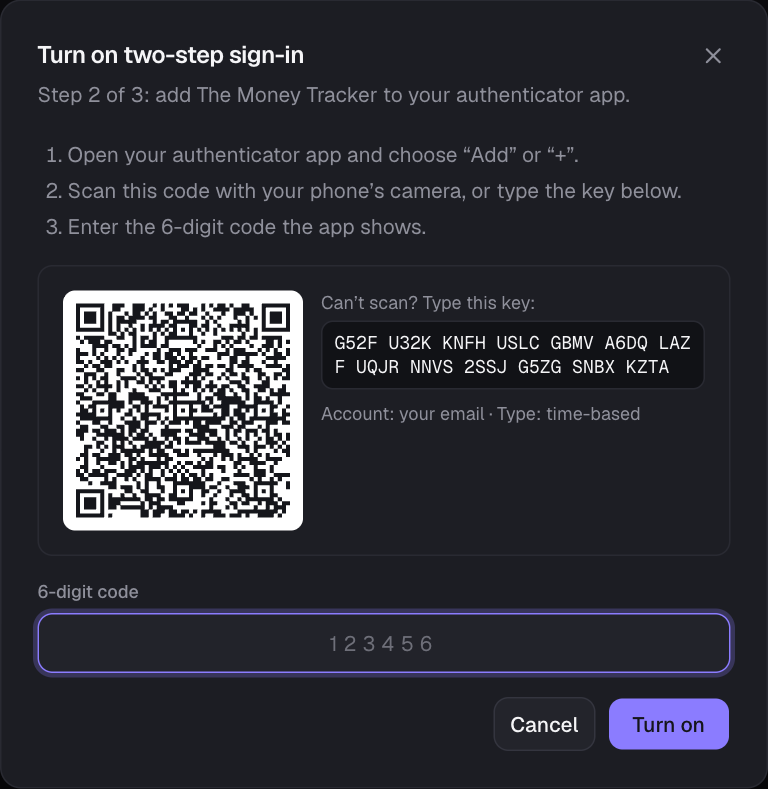
- 3In the app, choose Add (or +) and scan the QR code. Can’t scan? Type the key shown under it.
- 4Enter the 6-digit code the app shows and choose Turn on.
- 5Save your backup codes (Copy or Download). Each one lets you sign in once if you lose your phone. Keep them somewhere safe, away from your phone.
Signing in with a code
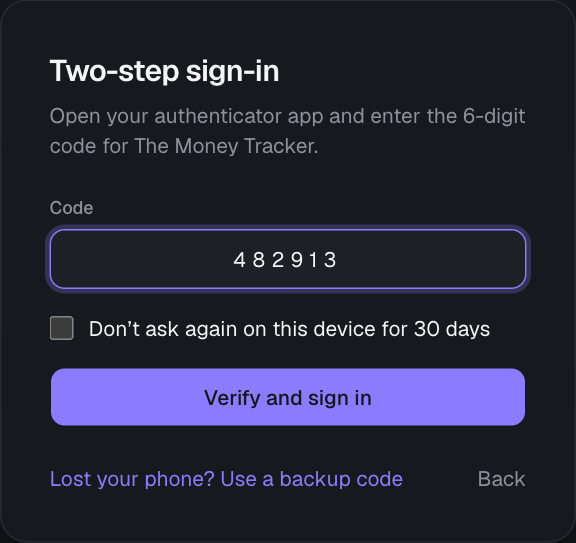
- After your password, enter the current 6-digit code from the app. Codes change every 30 seconds.
- Tick Don’t ask again on this device for 30 days on your own computer or phone. Don’t tick it on a shared computer.
- Lost your phone? Choose Lost your phone? Use a backup code and enter one of your backup codes. Each works once; make new ones in Settings (New backup codes) when you’re back in.
- Quick-add devices don’t ask for codes: they can only add entries, never open your books.
Where you’re signed in
Settings → General → Where you’re signed in lists every browser signed in to your account, with when it was last active. Choose Sign out next to one you don’t recognize, or Sign out everywhere else to sign out every browser except the one you’re using. Tick Also disconnect my quick-add devices to cut those off too.

If you think someone else has your password
- 1Change your password (Settings → General → Password). This also signs out your other devices.
- 2Turn on two-step sign-in if it isn’t on.
- 3Use Sign out everywhere else, ticking Also disconnect my quick-add devices, then set up the devices you trust again.
- 4Check Team & access for people you don’t expect, and Transactions → Added by for entries you don’t recognize.
Built-in protection
- Passwords that have appeared in known data breaches are refused. (Only a 5-character piece of a scrambled version of the password is checked against a public breach list, never the password itself.)
- After 10 wrong passwords in 15 minutes, an account can’t be signed in to for a while, even from other networks. Password-reset emails are limited to 3 an hour.
- Signing out, changing your password or removing someone’s access takes effect immediately, on every device.
- Every page checks who you are and what you’re allowed to see on the server, for every business. See Privacy & data.
Still stuck? See Troubleshooting, or contact the person who runs this site.