Team & roles
Share individual businesses with partners, staff and your accountant. Access is given per business, so a group of people can partner in several businesses with each other without anyone seeing more than they should.
The roles
| In a business they have access to… | Manager (owner) | Co-manager | Employee | Accountant |
|---|---|---|---|---|
| See its dashboard, totals and HST | ✓ | ✓ | — | ✓ |
| See all of its transactions, invoices, bills and their history | ✓ | ✓ | Only their own | ✓ |
| Add transactions | ✓ | ✓ | ✓ (and quick add) | If you allow it |
| Edit transactions | All | All | Only their own | All, if you allow it |
| Delete and restore transactions | ✓ | ✓ | — | — |
| Invoices & bills and recurring payments | ✓ | ✓ | — | See only |
| Import transactions | ✓ | ✓ | — | If you allow editing |
| Export CSV / PDF and the year-end pack | ✓ | ✓ | Only their own entries | ✓ |
| Rename, archive or delete it; set its HST rate | ✓ | — | — | — |
| Edit purposes, payment methods and merchants’ HST rates | ✓ | — | — | — |
| Invite people and change their access | ✓ | Employees and accountants | — | — |
- You’re the manager of every business you create. The same person can be a manager of their own businesses, a co-manager in a partner’s and an employee somewhere else; each business shows your role in it.
- Transactions added to a shared business always go into the owner’s books and use the owner’s purposes and payment methods, so the owner’s reports stay consistent.
- Nobody you share with sees your other businesses, your transactions without a business, your own books’ budgets, your saved merchants or your card details. A shared business’s own budgets are visible to its co-managers and accountants.
Invite someone
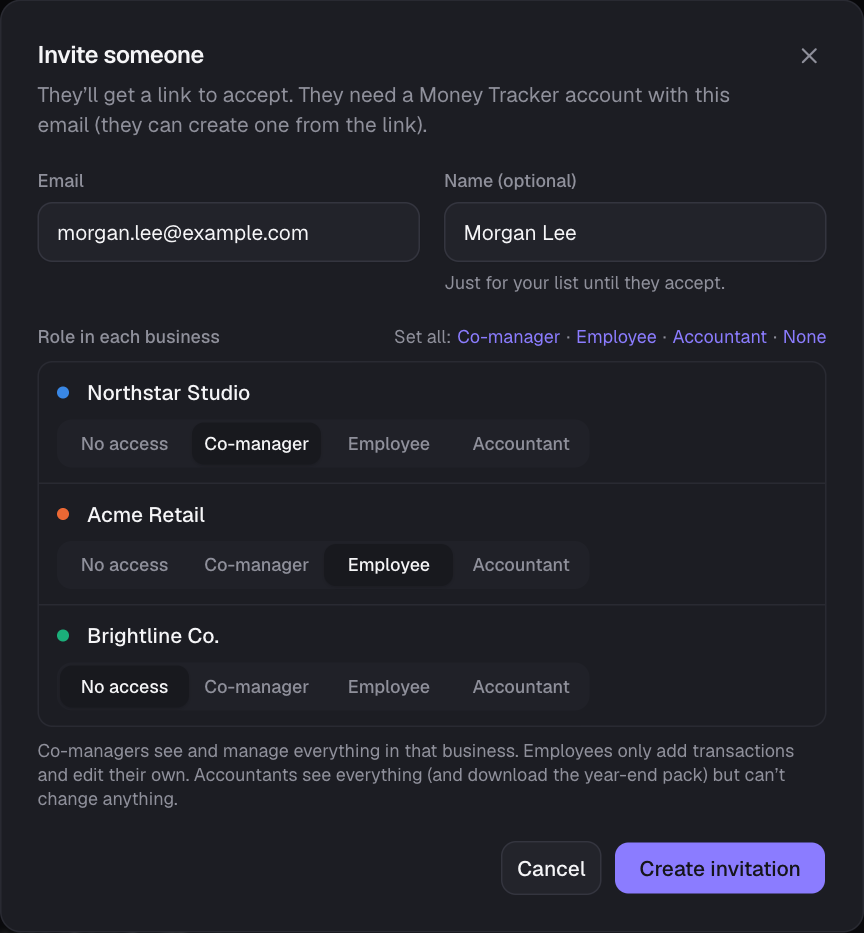
- 1Go to Team & access and choose Invite someone.
- 2Enter their email (and a name, if you like). For each of your businesses choose No access, Co-manager, Employee or Accountant; “Set all” fills the whole list.
- 3Choose Create invitation and send them the link (by text, email or chat). If the site’s email service is set up, they also get it by email. The link is shown once, works once and expires in 7 days.
- 4They open the link, create an account (or sign in) with the invited email, and choose Accept invitation. An invitation is the only way to create an account without the administrator.

Co-managers add staff
- Co-managers can invite people to the businesses they co-manage, as employees or accountants, and change or remove those roles later. Only the owner adds co-managers or changes a co-manager’s access.
- Owners see everyone a co-manager adds (“added by”) and every invitation they send (“Sent by”), and can change or cancel any of it. If a co-manager loses access, the invitations they sent stop working.
Change or remove access
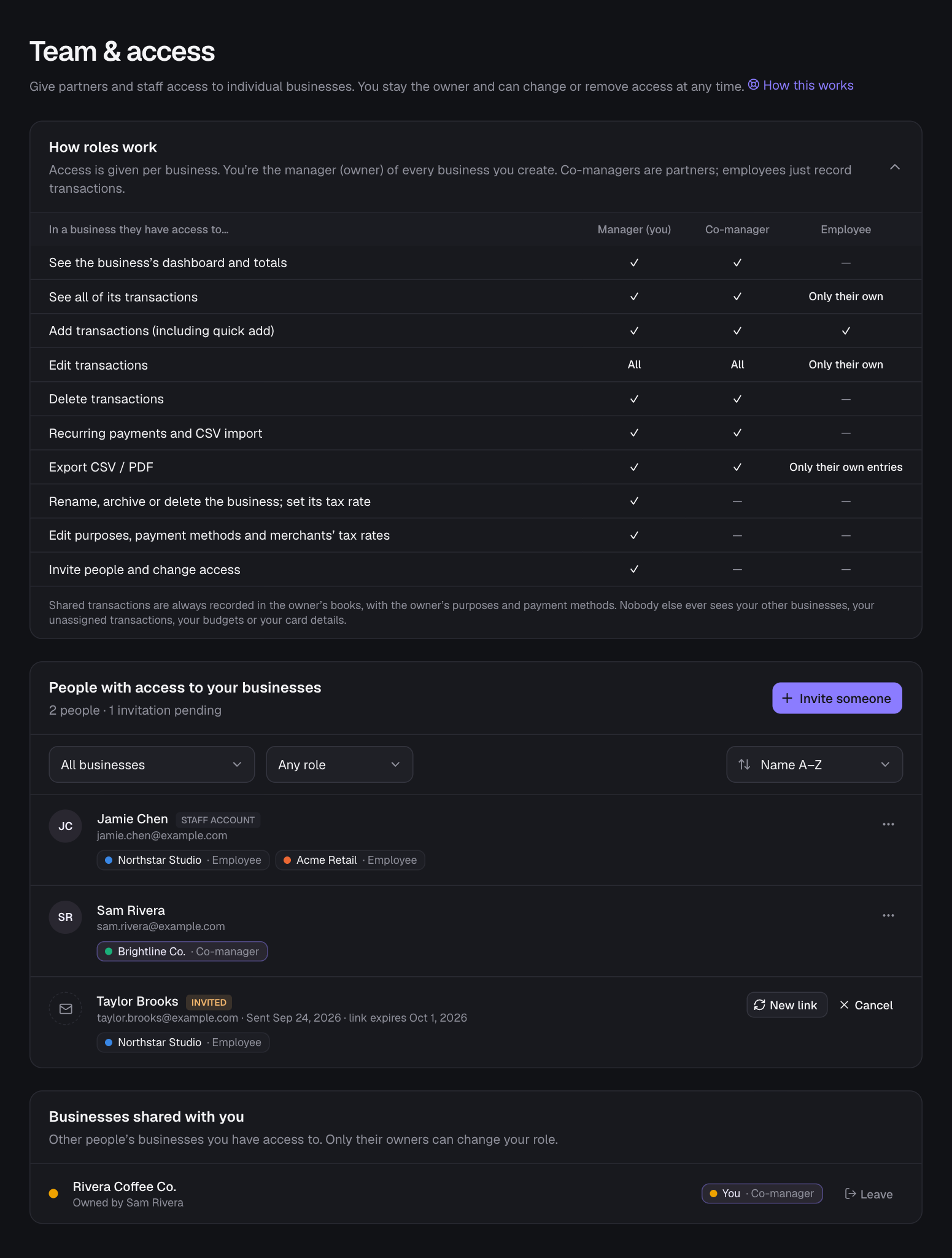
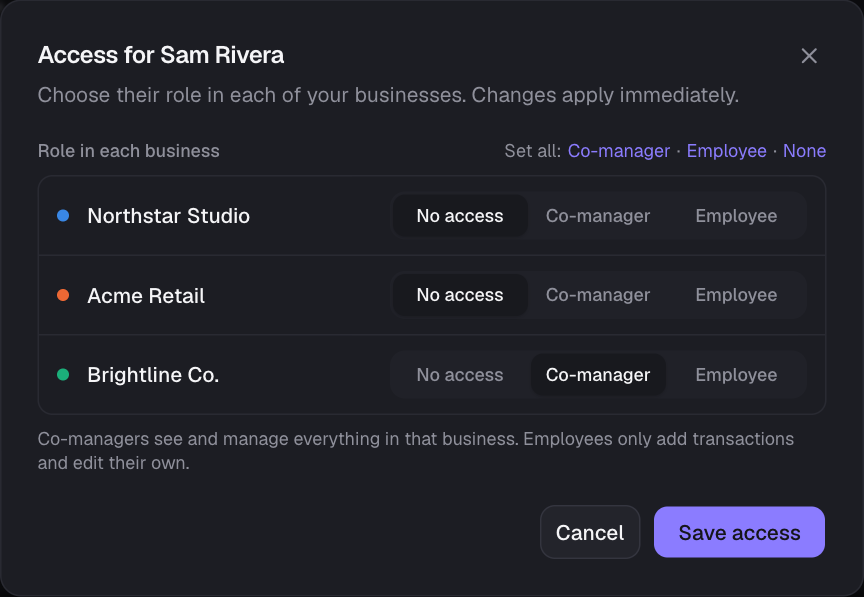
- ⋯ → Change access sets their role in each business (changes apply immediately); Remove from all businesses takes everything away. Co-managers see Remove from what you manage, which takes away the employee and accountant roles they can change.
- Pending invitations can get a New link (the old one stops working and the 7 days restart) or be cancelled.
- With more than one business, filters above the list show who has access to one business or only co-managers, employees or accountants, and Sort orders people by name, newest access or most businesses.
- Removing someone never deletes their past entries; they stay in your books with their name on them. Their quick-add devices stop working for your businesses at once.
- In a business someone shared with you, use Leave (Team & access or Businesses) to give up your access.
What partners, employees and accountants see

- Co-managers get the full app for the businesses they co-manage: dashboard (pick the business at the top), transactions, recurring payments, import and export.
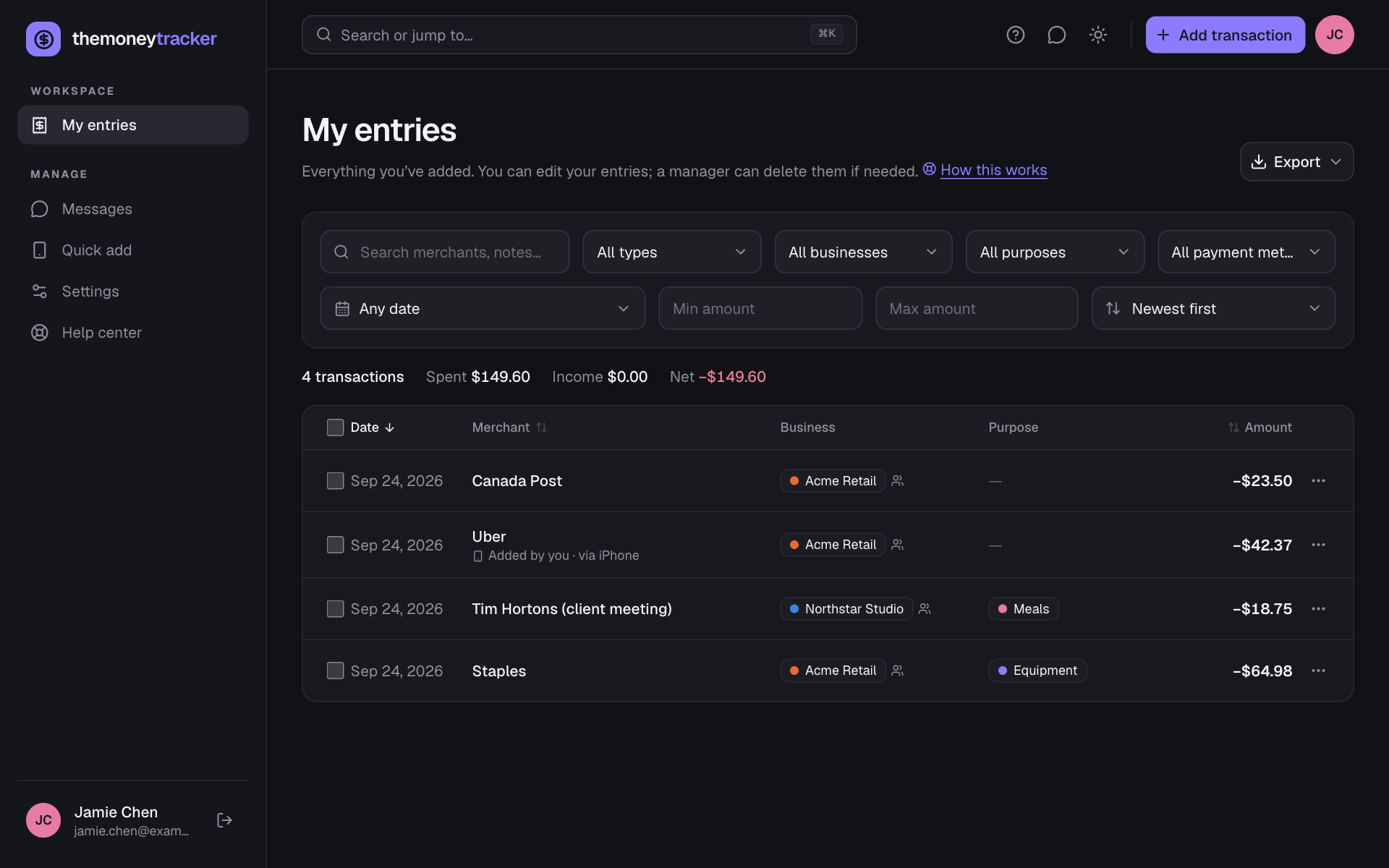
- Employees see My entries, Quick add, Settings and Help. Only their businesses appear when they add something, and they can edit but not delete their entries. The owner’s merchant rates and saved fees fill in for them.
- Accountants see everything in the businesses you give them, like a co-manager, but can’t change anything: the dashboard, transactions (each opens read-only, with its receipt and full history), invoices and bills, recently deleted transactions and Messages. There’s no Add button for them. They download the year-end pack from Export and can set up email reports for those businesses. To give your accountant access, invite them with the Accountant role for the businesses they keep the books for.
- Letting an accountant add and edit: in Team & access, open their access (or the invitation), and under each business where they’re the accountant tick Can add and edit transactions. Optionally pick the last day (Through), e.g. for year-end clean-up; leave it empty for no end. While it’s on they add transactions, import statements and edit any transaction in that business (every change is in its history with their name), but can’t delete or restore anything, or change invoices, recurring payments, lists or settings. After the last day they’re read-only again by themselves, and the team list shows “editing ended”.
- Someone who creates an account from an invitation (as a co-manager, an employee or an accountant) gets a team-member account: they work in the businesses they were given and can’t create businesses of their own. Businesses are paid for, so only the administrator can add them to an account.
Still stuck? See Troubleshooting, or contact the person who runs this site.