Getting started
Your administrator sets up your account. Choose a password from your link, then add your businesses and numbers.
Your account
Money Tracker accounts are set up by your administrator (there’s no public sign-up). Each business you run is a monthly plan: your administrator sets how many businesses your account can have.
- 1Your administrator creates your account and sends you a link (by email, or they share it with you).
- 2Open the link, choose a password of at least 8 characters and choose Set password. The link works once and expires after 7 days; ask for a new one if it has.
- 3Sign in with your email and new password.
Your first steps
A new account shows these ways to begin:
- Add transaction: record something by hand (you can also press N on any page).
- Import: bring in a download from your bank (CSV, Excel, OFX/QFX or QIF) or a spreadsheet (see Importing transactions).
- Add your business on the Businesses page (as many as your plan includes).
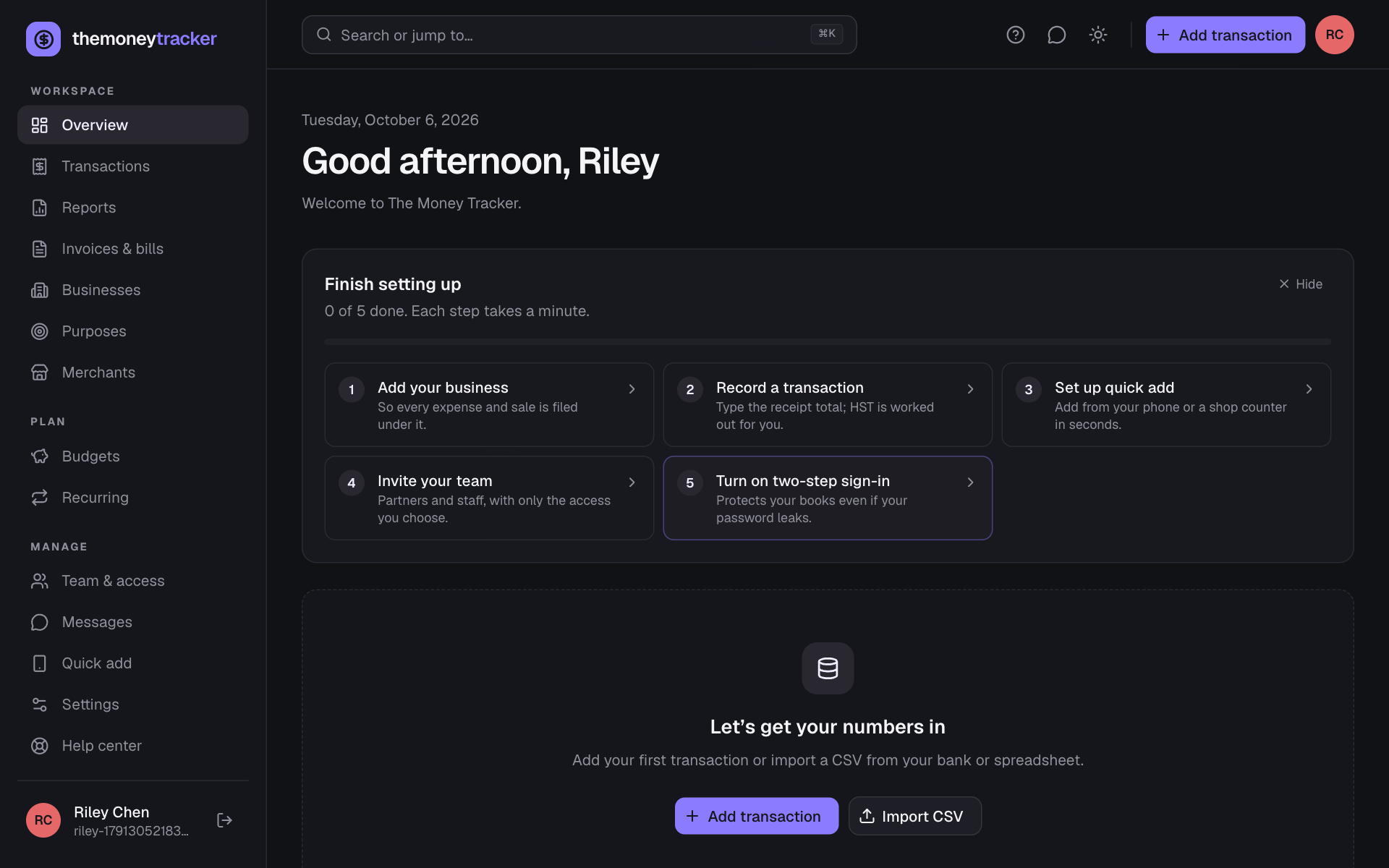
Above that, Finish setting up lists five short steps: add your business, record a transaction, set up quick add, invite your team and turn on two-step sign-in. Each ticks itself off when it’s done; choose Hide if you don’t need it.
The top bar: search, help and messages
The Search or jump to… box at the top of every page (the magnifier on a phone) finds pages, businesses, purposes and merchants, and searches your transactions for whatever you type (including a transaction’s ID, like T-7K3Q9M). Open it from anywhere with ⌘ K (Mac), Ctrl K (Windows) or /, move with the arrow keys and press Enter. In the admin portal it searches accounts, businesses and transactions instead.
On a computer, the icons beside Add transaction are Help (the guide for the page you’re on, the help center and the keyboard shortcuts; press ? for those anywhere), Messages (your chats with the people you work with and with the administrator, with the number waiting) and a light / dark switch. Your avatar opens your account menu: settings, theme and signing out.
The Money Tracker keeps your place
- Pages remember how you left them. Filters, searches, sorting, the date range and the page you were on come back when you return from another page (in the same browser tab). Clear filters starts fresh; signing out forgets them.
- Everything updates on its own. While a page is open, new transactions (from partners, employees or quick-add devices) appear within about 30 seconds, without reloading. Anything you’re typing, and any open form, stays as it is.
Signing in and resetting your password
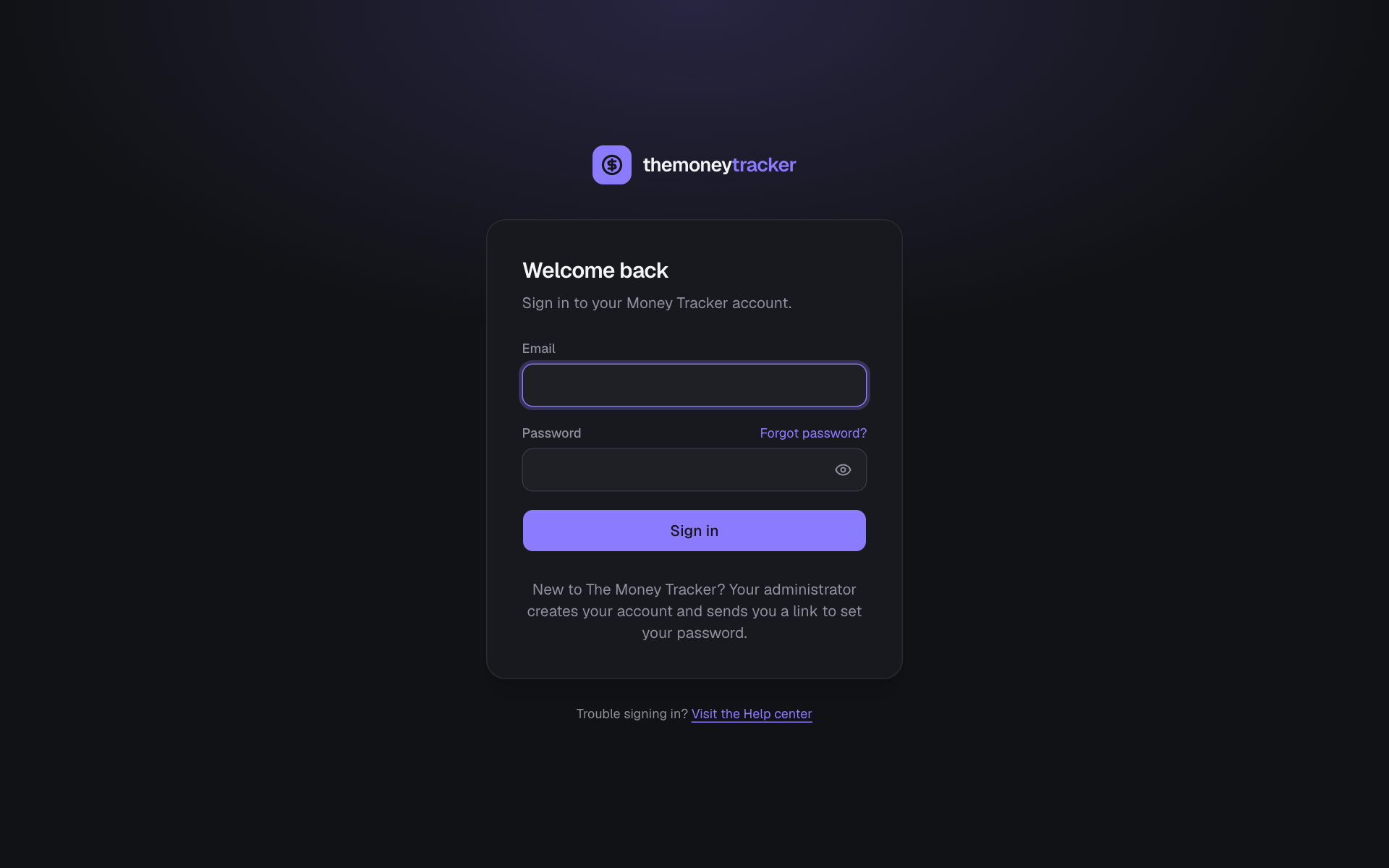
- 1Choose Sign in, enter your email and password. The eye icon shows what you typed.
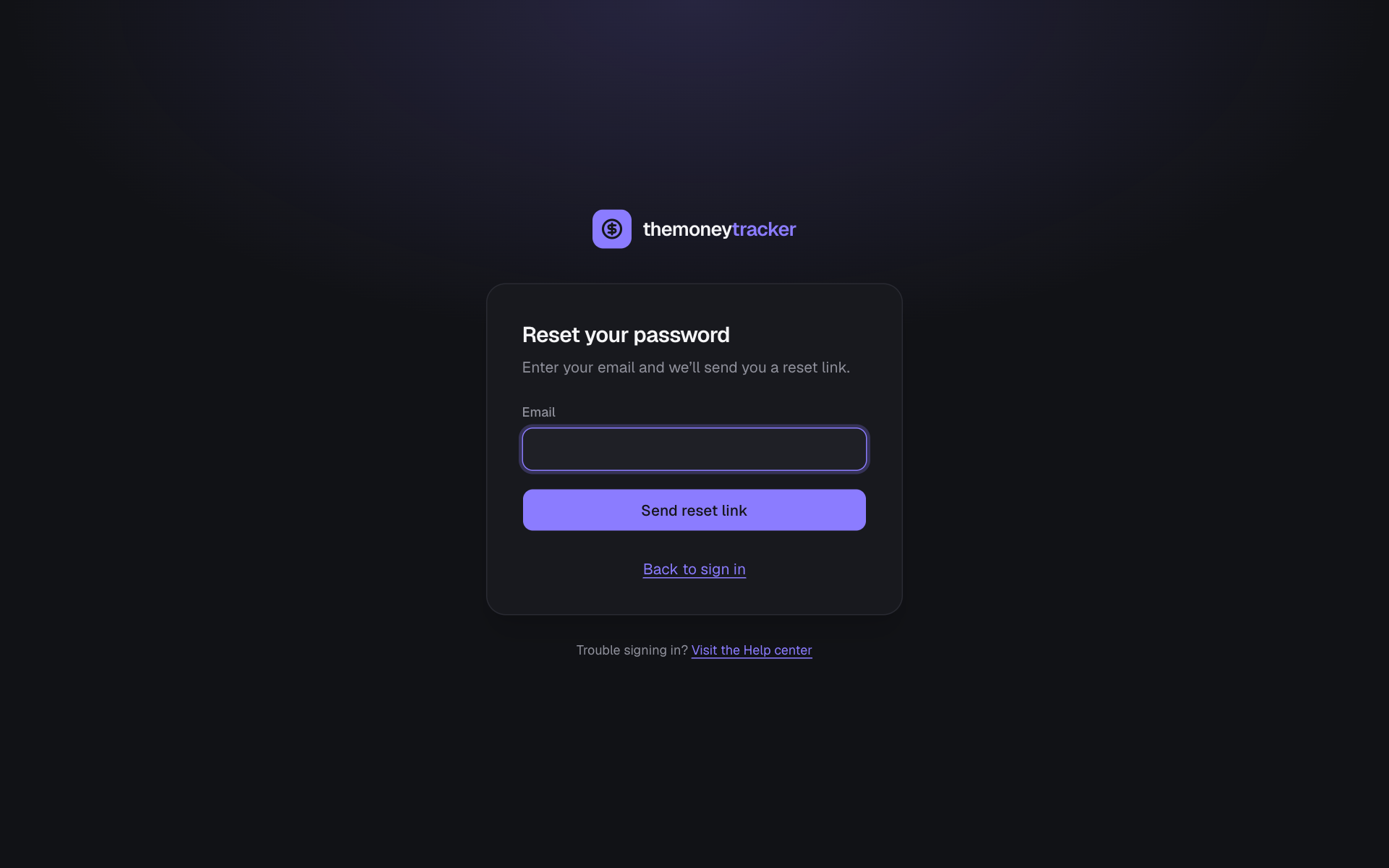
- 2Forgot it? Choose Forgot password?, enter your email and follow the link we send. Links work once and expire after one hour.
- 3After resetting, you’re signed out on every other device for safety.
Still stuck? See Troubleshooting, or contact the person who runs this site.