Quick add
A small page for phones, tablets and shared counter computers: open it from the home screen and record a transaction in seconds, without signing in.
Use it on the device you’re on
- 1Signed in on your phone? Open Quick add in the menu (or Settings → Quick add) and choose Use on this device, then give it a name.
- 2Add it to the home screen. iPhone/iPad: Safari → Share → Add to Home Screen. Android: Chrome → ⋮ → Add to Home screen (or Install app).
- 3Open it from the home screen whenever you need it. It stays connected; you won’t be asked to sign in.
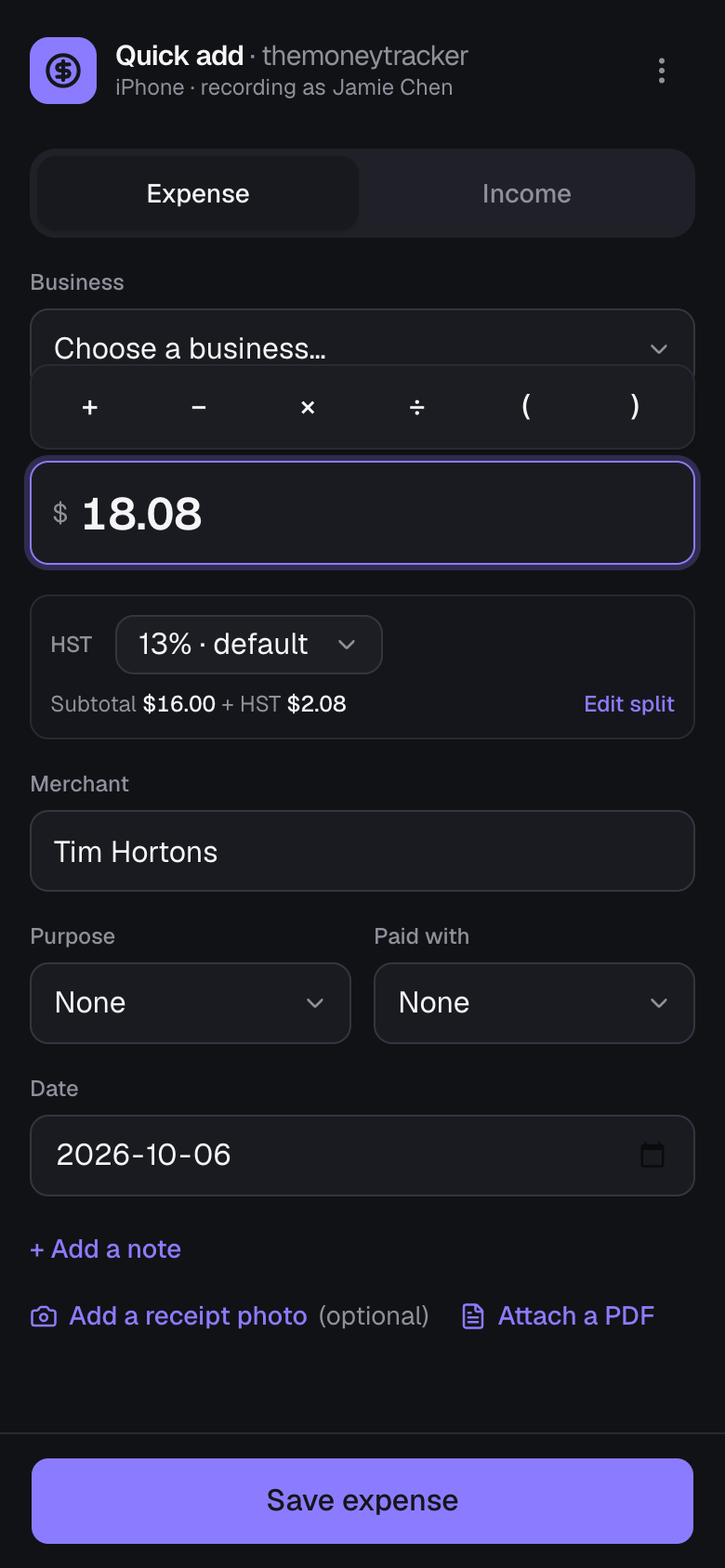
Good to know: Scan a receipt at the top takes a photo of it and fills in the entry: the total, HST, date, merchant, payment method, purpose, and a note of what was bought (check them, then save). Once you’ve typed or picked something, a receipt only fills what’s still empty. Quick add is in your light or dark theme and your color. Each entry can have receipts (optional, up to 10): tap Add a receipt photo before saving to take one (then Add a photo for another), or Attach a file to add a PDF, Word or Excel file. Anyone who can see the transaction can open them later.
Connect another device (a staff phone or a counter tablet)
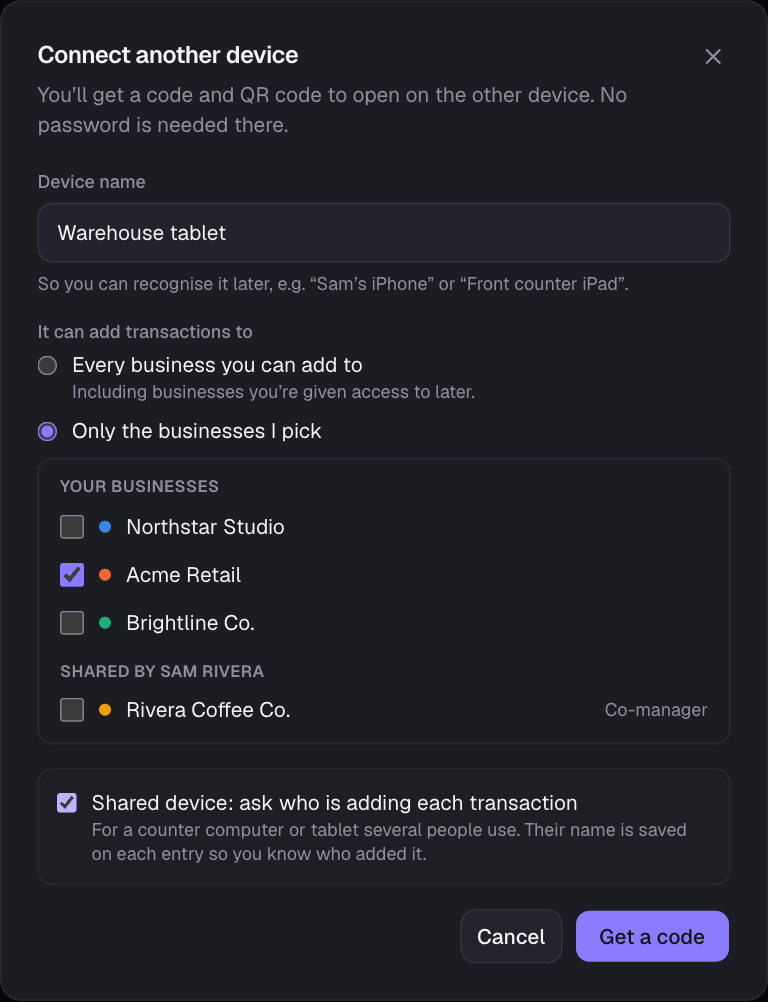
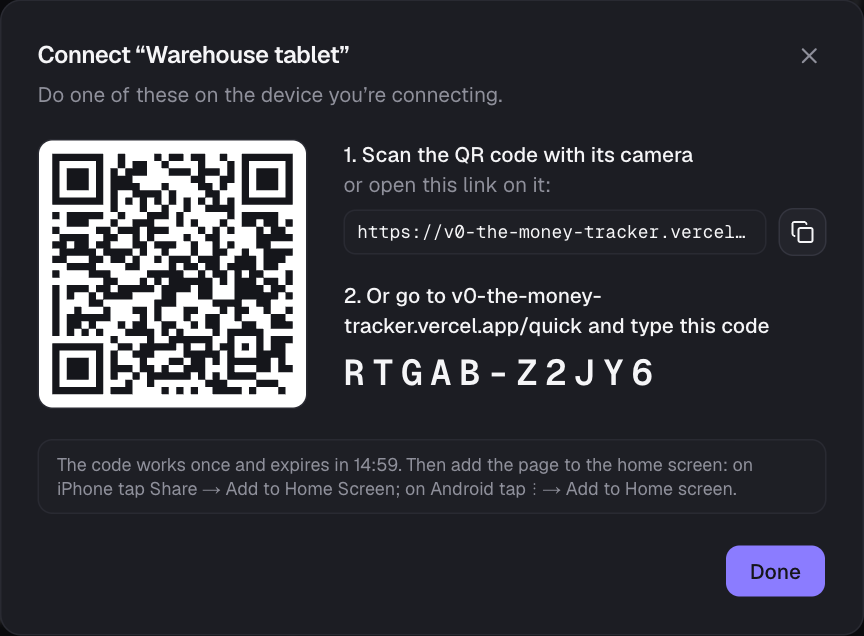
- 1On a computer where you’re signed in, go to Settings → Quick add → Connect another device.
- 2Name it, choose which businesses it can add to (all, or only some) and, for a device several people share, tick Shared device: ask who is adding each transaction.
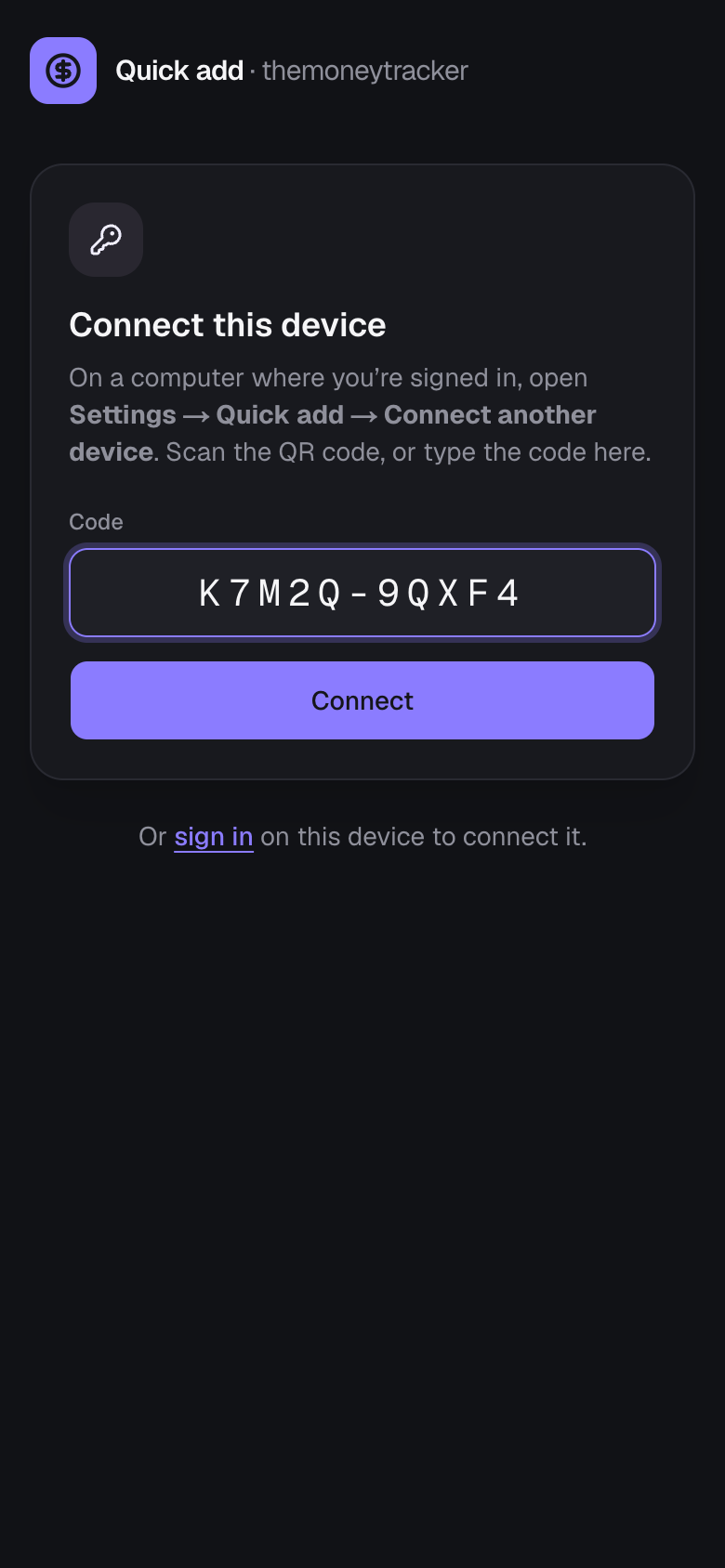
- 3Choose Get a code. On the other device, scan the QR code with the camera, or open /quick on this site and type the 10-character code. The code works once and expires in 15 minutes.
- 4Add it to that device’s home screen as above.
Adding a transaction
- Pick the business (skipped when the device only has one), type the total (HST is worked out at the merchant’s saved rate or that business’s rate), the merchant, and optionally a purpose, payment method, date, note or receipt. Choose Save.
- The owner’s saved merchants are suggested as you type, under any of their other names too (“STAPLES #4521” offers Staples). Picking one fills in its business, purpose, payment method and tax rate, unless you already chose them.
- Paid in another currency? Tap the currency beside Total amount (for example EUR) and type what you paid in it. It’s converted at the Bank of Canada rate for that day, or tap Use what your bank charged to enter the exact amount. Add a conversion fee adds your card’s fee. The currency stays picked for the next entry.
- Add a fee records a card processing or other fee on top of the total, from the owner’s saved fees or typed in.
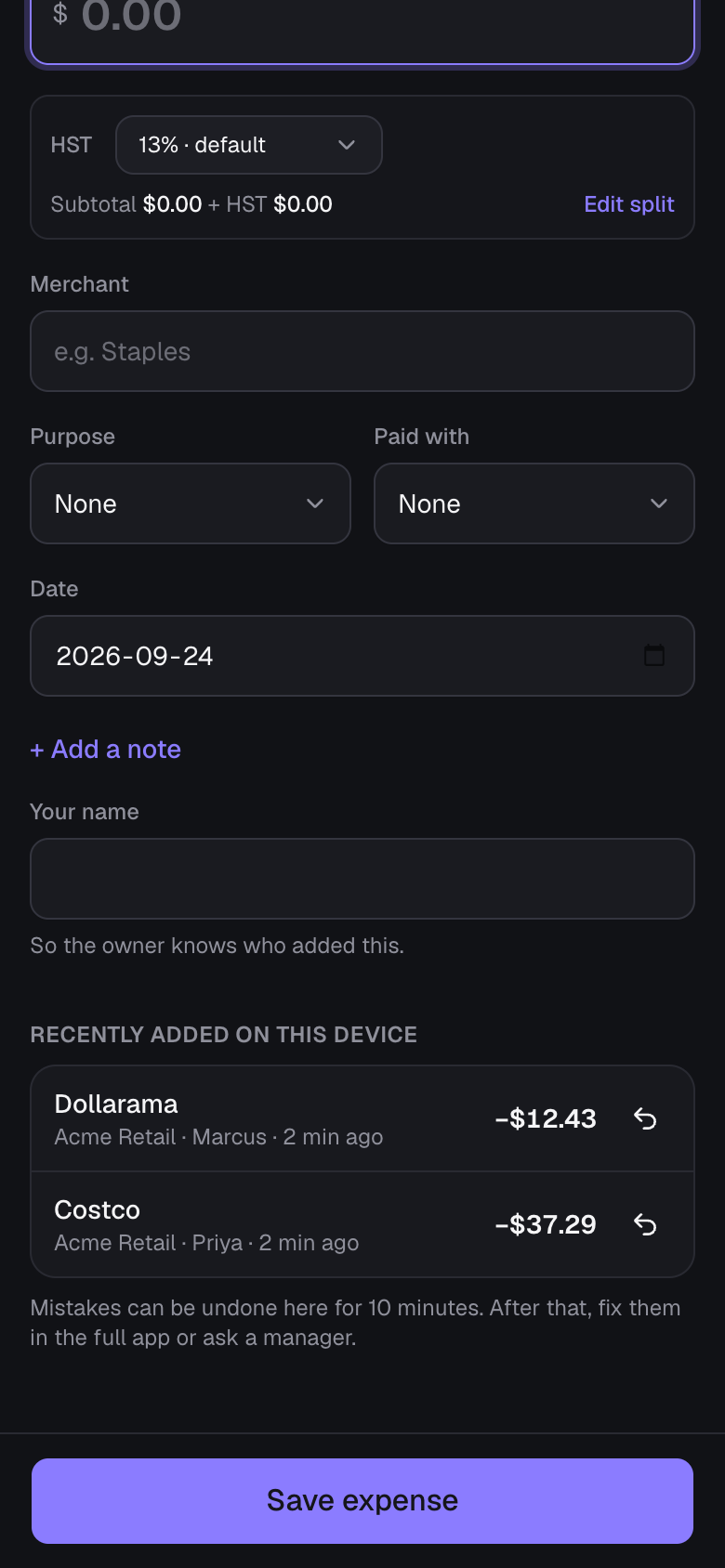
- A green banner confirms it, with Undo. Entries added on this device in the last 10 minutes can be undone from the list below the form; after that, fix them in the full app or ask a manager.
- Entries are recorded as the person who set the device up, show “via [device name]”, and on shared devices also the name typed in.
- No connection? Keep adding. Entries (and their receipts) are kept on the device under Waiting to send and go to your books on their own once it’s back online with Quick add open. Until then, one can be removed from that list. Quick add opens without a connection too, once it has been opened with one. Without a connection, the Bank of Canada rate can’t be looked up, so for another currency tap Use what your bank charged and type what it came to.
Ask a manager
On a shared device, or an employee’s own one, the speech bubble with a question mark at the top sends the business’s managers (its owner and co-managers) a question or a request, and their replies show right there.
- An entry past the 10 minutes to undo it? Tap the question-mark button beside it under Recently added on this device: it opens with Fix an entry and that entry picked. Say what should change and Send. Or pick Remove an entry, A question (how to record something) or Something else, and any entry this device added.
- On a shared device, type your name so the managers know who’s asking (“Lee on Front counter”). Everyone using the device sees its conversation, so keep private things for the full app.
- Replies come back in the same place: a number on the button and a “Sam replied” banner show when one arrives (checked every half minute while Quick add is open), and under your latest message it says who has seen it. To follow up, just type and send.
- Managers answer in Messages, where the conversation is named after the device (and, for someone’s own phone, the person) with a phone icon. Only entries this device added show as cards on it, and nothing else of anyone’s chats or books.
- Paired again, or switched between shared and not? The device starts its conversations afresh (the managers keep what was said). Once a device is disconnected, or no longer adds to that business, its conversation turns read-only for the managers.
Managing devices
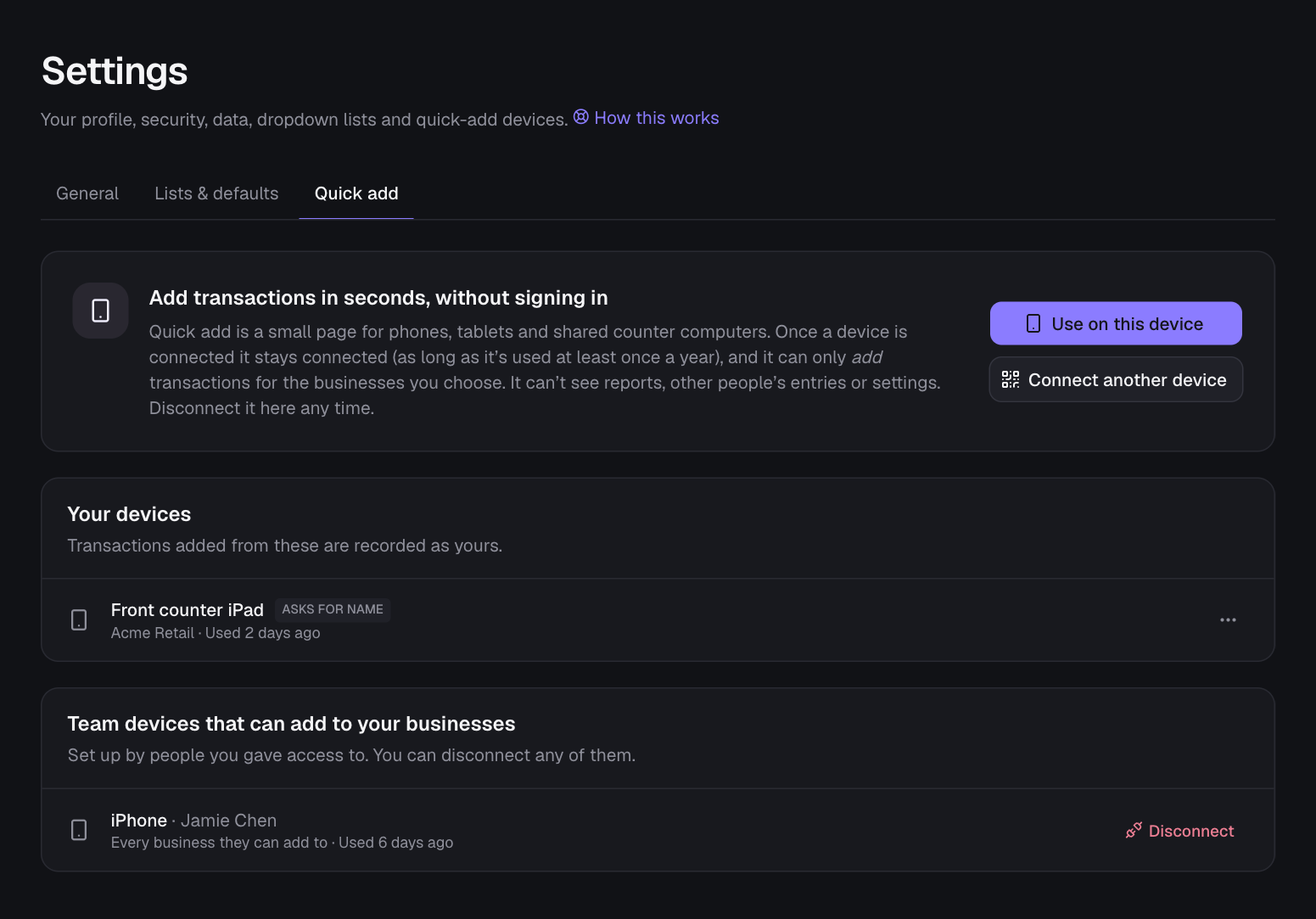
- Settings → Quick add lists your devices (with when each was last used). Use ⋯ to edit a device’s name and businesses, get a new code to reconnect it, or Disconnect it; it stops working immediately.
- Owners also see Team devices that can add to their businesses and can disconnect any of them.
- A device can only add transactions to the businesses it’s allowed and its person can still access (and ask their managers). It can’t open the rest of the app, see reports or other people’s entries, export, or change settings.
Heads up: Treat a connected device like a key: anyone holding it can add transactions (but nothing more). Disconnect lost or replaced devices right away in Settings → Quick add.
Still stuck? See Troubleshooting, or contact the person who runs this site.