Finding & editing transactions
Search, filter, fix and clean up everything you’ve recorded.
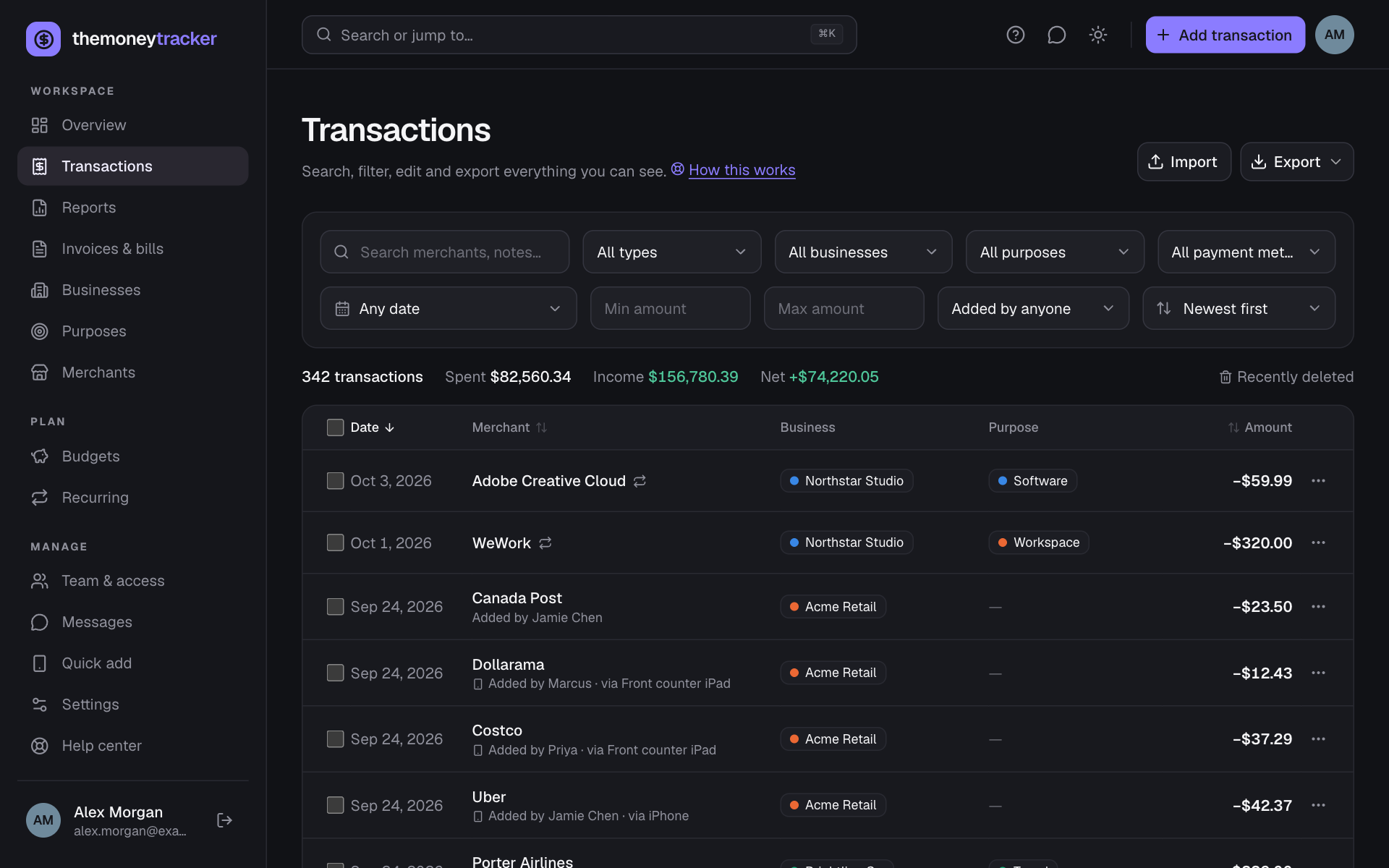
Search and filters
- Search looks in merchant names, notes and tags.
- Filter by type (including Anything with fees, Expenses with fees and Income with fees), business, purpose, payment method, tag (once anything has one), date range and amount. The date range offers the same choices as the dashboard (This month, Last quarter, Year to date…) plus any custom From–To dates; it shows the preset’s name when the dates match one. Choose “No business/purpose/payment method” to find transactions that still need one.
- Added by (shown once other people work in your businesses) lists only one person’s entries, e.g. everything an employee added this week. Purposes and payment methods from a partner’s lists are grouped under their name.
- Sort by newest, oldest, largest, smallest or merchant (A–Z or Z–A). On a computer you can also click the Date, Merchant or Amount column heading; click it again to reverse the order. An arrow shows which column the list is sorted by.
- The line above the table totals what’s shown: count, spent, income and net (hover each for its HST split). Every transaction is listed, but spent, income and net leave out money that isn’t either (transfers between your own accounts, the owner’s money, loans, HST payments and equipment), as on the Overview; a line under them names those purposes. Clear filters resets everything.
- Under the merchant, rows added by someone else say who (Added by Jamie Chen), and quick-add entries name the device (via Front counter iPad). A people icon next to a business means it’s shared with you. A transaction’s tags show under it; click one to see everything with that tag, and the totals line adds them up.
- Filters live in the page address, so you can bookmark a view or share the link with yourself on another device.
Edit, duplicate, make recurring, delete
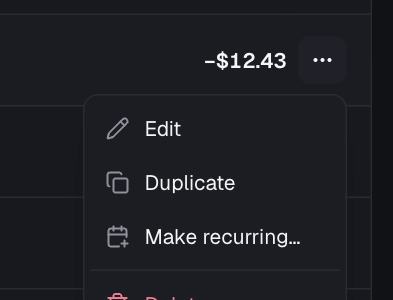
Click any row to edit it; the form’s subtitle says who added it, from which device and who last changed it. The ⋯ menu at the end of a row also offers Duplicate (a copy dated today), Make recurring… (starts a recurring payment from it, beginning one period later so this one isn’t counted twice) and Delete. A repeat icon marks transactions created by a recurring payment. You only see the actions your role allows: employees get Edit but not Delete. Deleted something by mistake? Choose Undo on the message that follows, or restore it later from Recently deleted (see below).
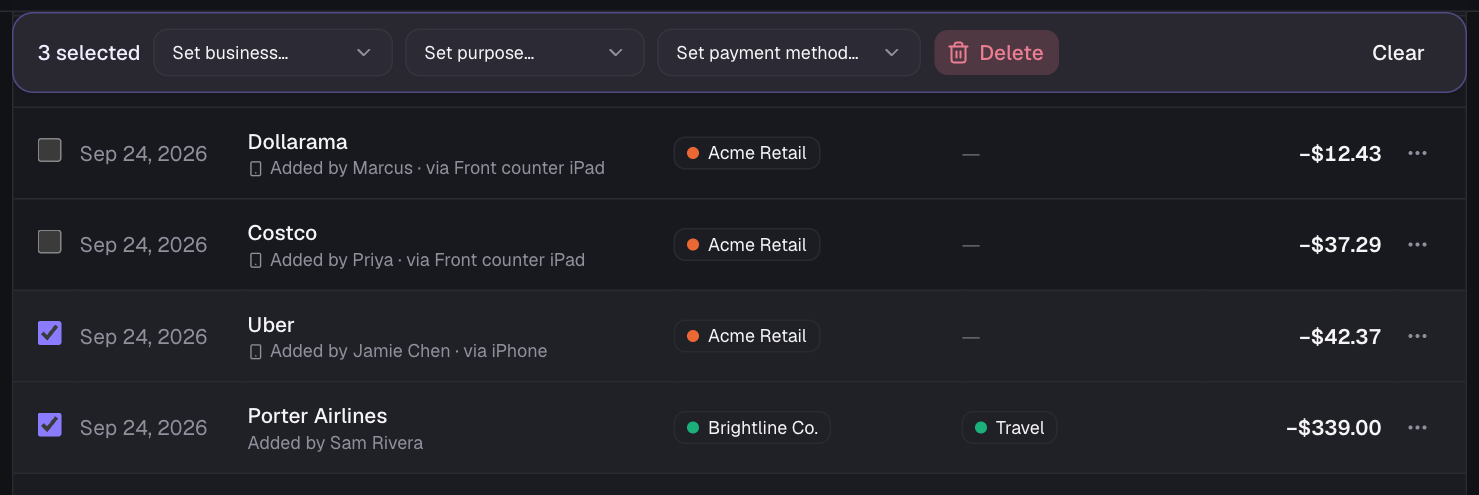
Bulk changes
Tick the boxes on the left (or the header box for the whole page). A bar appears where you can set the business, purpose or payment method for all selected rows at once, add a tag to them all (Add tag…, then Tag), take one off (Remove tag…), or delete them. Purposes and payment methods belong to one owner’s lists, so they’re only applied to selected rows in that owner’s books; the message tells you how many were skipped. Moving rows to a business in someone else’s books keeps same-named purposes and payment methods and clears the rest.
Linked transactions
Keep related transactions together: a forex or bank fee charged days after a purchase, a refund, a deposit and the final payment. Each still counts on its own date; the link is there so you can see them side by side and what they come to together.
- Add a new one: in the row’s ⋯ menu choose Add linked transaction…. The form starts with the same merchant, business, purpose and payment method; enter the fee or refund and save. (A fee on its own can have a total of 0 with the fee added.)
- Link ones you already have, e.g. a forex fee that came in with a bank import: tick them and choose Link in the bar that appears. The earliest becomes the group’s main transaction. Unlink takes the ticked ones out again (unlinking the main one ungroups them all).
- A link icon beside the merchant marks linked transactions; click it to list just that group, with its totals above the table. Remove the Linked group chip to see everything again.
- Open a linked transaction to see its group, the total Together (e.g. −$1,068.00 for a $1,023 purchase and its $45 forex fee), and Unlink.
- Link by ID: open a transaction, click its ID beside the title and choose Link to another transaction…, then search for the other one by its ID, merchant, note or amount. Link another in a group does the same. In a chat, a message mentioning two or more transactions offers Link these.
- Links stay within one owner’s books: moving a transaction to someone else’s business unlinks it.
History: every change, and restoring deleted ones
The Money Tracker keeps a complete history of every transaction: who added it, every change anyone made (each field before and after), and who deleted or restored it. It’s recorded by the database itself, so nothing can change a transaction without it showing up: the form, bulk changes, imports, quick-add devices, renaming a merchant everywhere, merging lists, recurring payments and fixes by the admin all appear.
- See it: open a transaction and choose History in the line under the title (or click its ID → History), or use the row’s ⋯ → History. Newest first: “Jamie Chen changed it · Today, 3:15 PM · Amount $1,500.00 → $1,023.00 (1500-477)”, “Maria on Front counter added it”, “You added a receipt”. How a change was made is noted too, e.g. by importing a file or while changing several at once.
- In chats: a transaction card that has changed since the message was sent has What changed? under it, which opens its history, so a fix is plain to everyone.
- Who sees it: anyone who can see the transaction (an employee sees the history of their own entries). Saving without changing anything records nothing.
- Undo a delete: deleting shows a message with Undo for a few seconds. Later, owners and co-managers can use Recently deleted (the link beside the totals on Transactions): everything deleted in the last 90 days, who deleted it and when, with Restore and History. A restored transaction comes back as it was, with the same ID, amounts, fees, purpose and who added it; a receipt and links from other transactions don’t come back.
- Transactions recorded before The Money Tracker started keeping histories show who added them and when; changes made before that aren’t listed.
Transaction IDs and discussing a transaction
Every transaction has a short ID, like T-7K3Q9M, shown beside the title when you open it and in the ID column of exports. Search for it here or with ⌘ K, copy it from the row’s ⋯ → Copy ID, or choose ⋯ → Discuss in chat… to talk it over with the people who can see it: the chat opens with the ID ready to send, and it shows as a live card everyone can open. See Messages & team chat.
Still stuck? See Troubleshooting, or contact the person who runs this site.