Lists & defaults
Every dropdown in The Money Tracker is yours to edit: Settings → Lists & defaults.
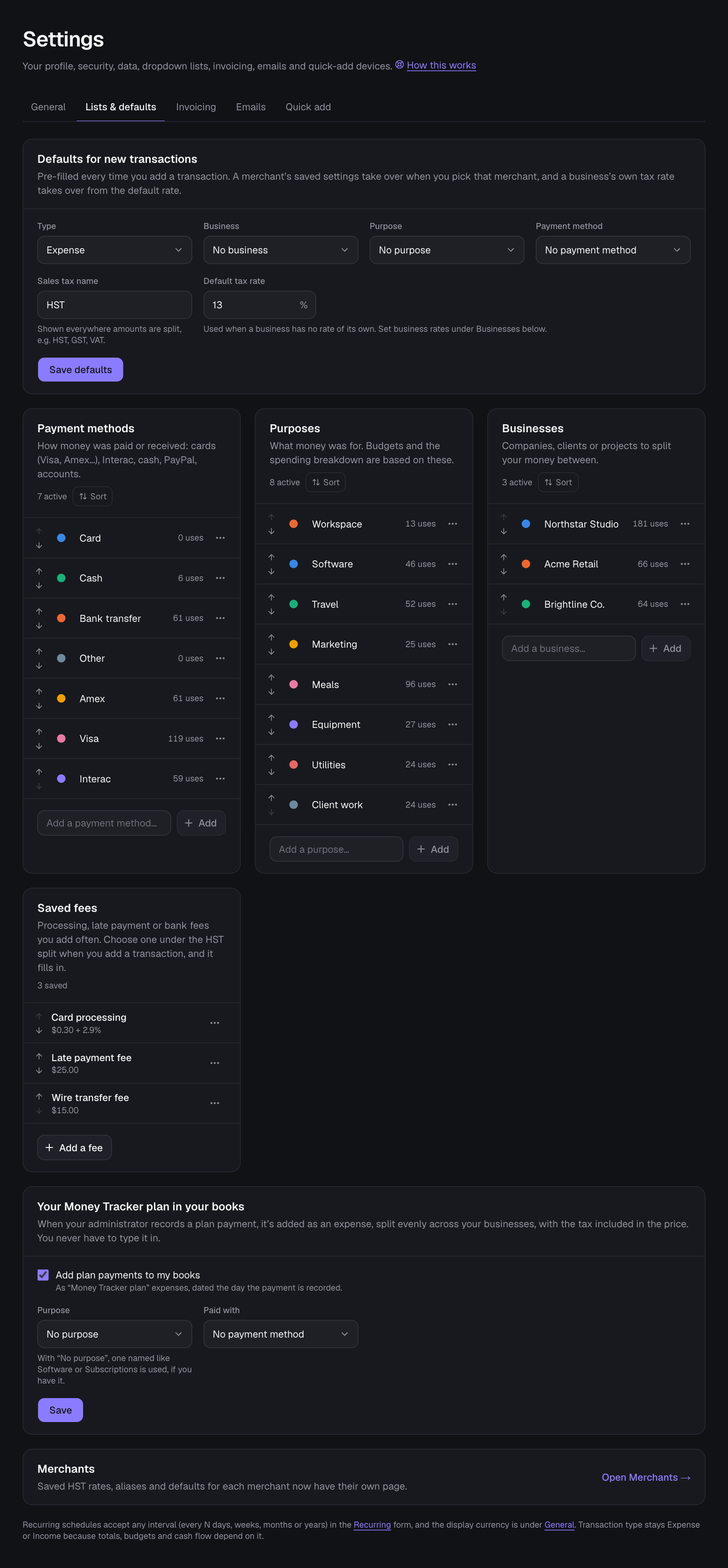
Defaults for new transactions
Pick the type, business, purpose and payment method that new transactions start with, plus the sales tax name (HST, GST, VAT…) and your default tax rate, used for businesses without a rate of their own. A merchant’s saved settings still take priority. Without a default business, a new transaction starts in your only business (when you have just one), and one added from a business’s dashboard or transactions starts in that business.
Payment methods, purposes and businesses
- Add: type a name at the bottom of a list and press Enter. New accounts start with Card, Cash, Bank transfer and Other; rename or replace them with Visa, Mastercard, Amex, Interac, PayPal, a business account… anything.
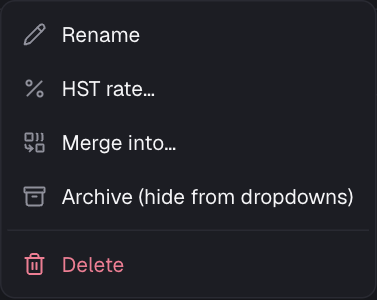
- Rename: click the name. Recolor: click the colored dot.
- Reorder: the ↑ ↓ arrows set the order used in every dropdown. To reorder a whole list at once, choose Sort at the top of it: Name A–Z, Most used first or Recently used first. You can fine-tune with the arrows afterwards.
- Archive: hides it from dropdowns but keeps it on past transactions, reports and filters (great for old cards or finished projects). Show archived lets you restore it.
- Merge into…: moves all its transactions, recurring payments, merchant settings, defaults (and for purposes, its budget) to another item, then removes it. Use this to fix duplicates like “Card” vs “Visa”.
- Delete: removes it; its transactions are kept but left blank for that field. Merge or archive instead if you want to keep them grouped.
- The uses count opens the transactions that use that item.
- Businesses have HST rate… in their ⋯ menu; a business with its own rate shows it under the name.
- These are your lists. People working in your shared businesses pick from them but can’t change them.
Tags
Tags lists every tag on the transactions you can see, with how many have it (click one to see them). In its ⋯ menu, Rename or merge… renames it on every transaction you can change; type another tag’s name to make the two one. Remove from all… takes it off them (the transactions stay). Each transaction’s history notes the change. New tags are added on transactions themselves.
Still stuck? See Troubleshooting, or contact the person who runs this site.