Sales tax (HST)
Every transaction is stored as subtotal + HST = total, so you always know how much tax you collected and how much you paid.
How the HST is worked out
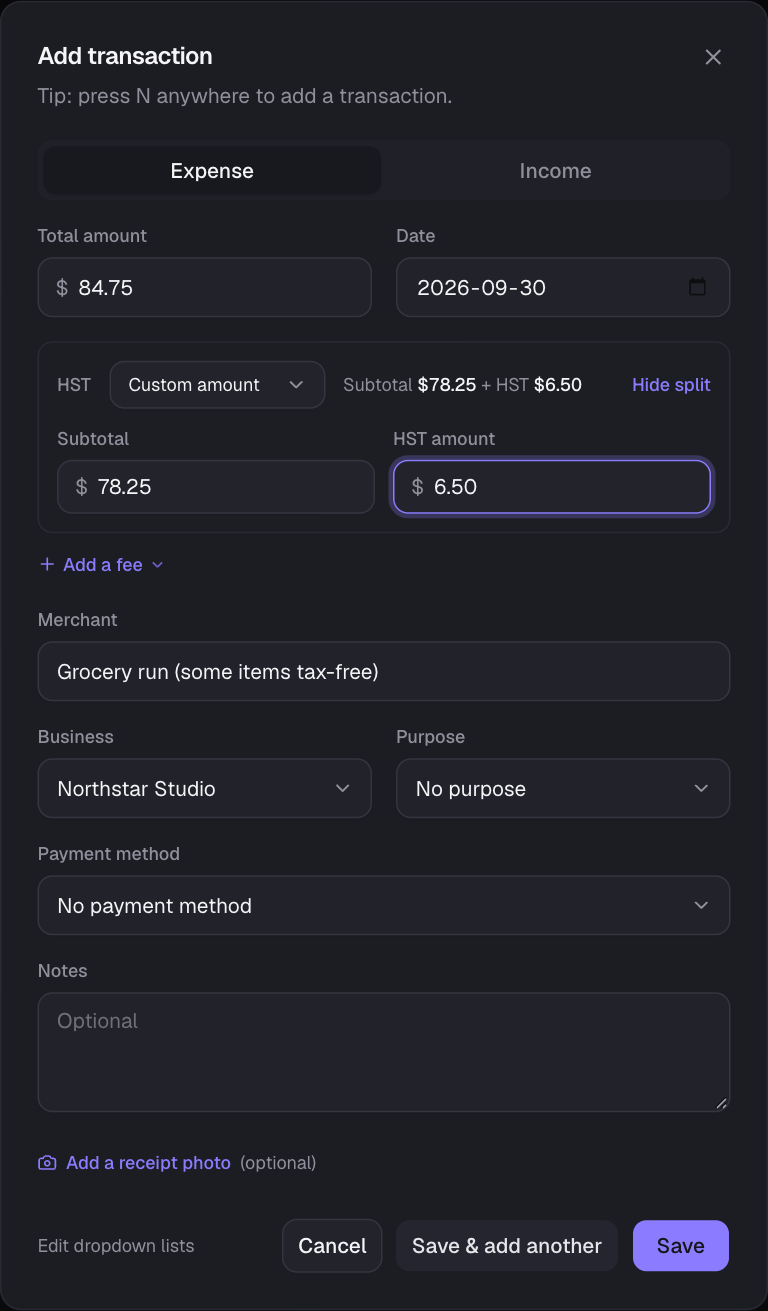
- You type the total; The Money Tracker takes the HST out of it at the chosen rate. For example $113.00 at 13% is a $100.00 subtotal plus $13.00 HST.
- The rate starts from, in order: the merchant’s saved rate, the business’s rate, then your default rate (13% unless you change it). Change it for one transaction in the rate dropdown: None (0%), 5%, 13%, 14%, 14.975% or 15%.
- Receipt with tax-free items, or a rounding difference? Choose Edit split and type the exact HST (or the subtotal). The rate shows Custom amount and your figures are kept as typed.
- HST can never be more than the total; the form and the server both check.
Where the split shows up
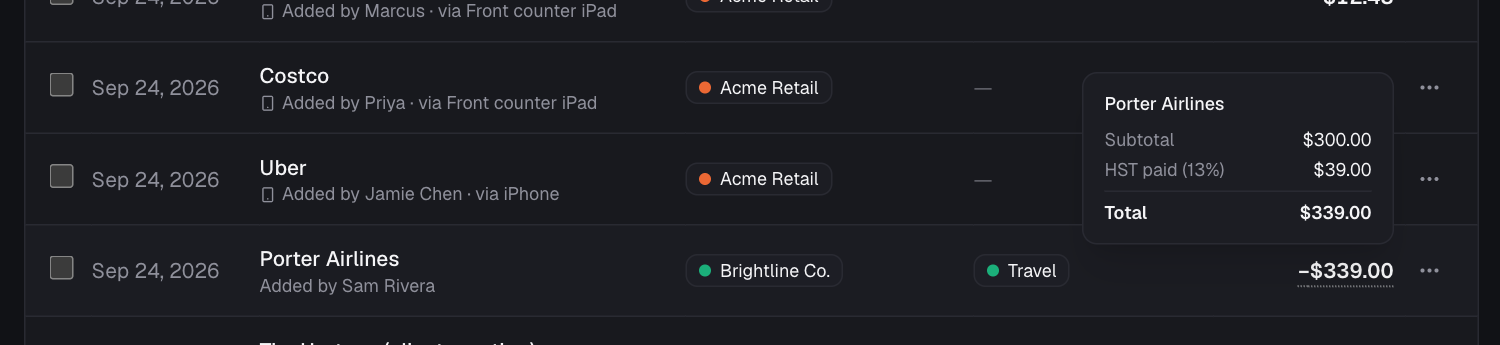
- Every amount in tables, cards, charts’ lists, budgets and recurring payments: hover (or tap) it to see subtotal, HST and total. Single transactions also show the rate.
- Dashboard: the HST surplus / deficit card, the HST surplus column in Business performance, and the HST panel.
- Exports: CSV has Subtotal, HST and Total columns (plus Fees); the PDF report has an HST line under the totals and an HST column.
Setting rates
- Your default and the tax’s name: Settings → Lists & defaults → Defaults. Call it HST, GST, VAT or anything else; the name is used everywhere. Set the default to 0% if you don’t charge sales tax.
- Per business: Businesses → ⋯ → Edit, or Settings → Lists & defaults → Businesses → ⋯ → HST rate…. Handy when businesses are in different provinces (e.g. 13% Ontario, 15% Nova Scotia, 5% GST in Alberta). Leave it empty to use your default.
- Per merchant: see below.
A fixed rate for a merchant
For suppliers that always charge the same rate (for example “No HST” from Canada Post stamps, insurance or bank fees, or 5% from an out-of-province supplier), save the rate once and it fills in every time. It’s optional, and you can still change the rate on any single transaction.
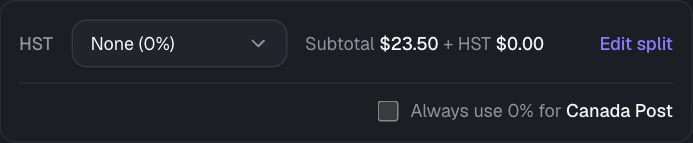
- While adding a transaction: pick the rate and type the merchant. If the rate differs from the business’s, the HST box offers Always use 5% for Canada Post. Tick it and save. Next time, the box says Canada Post’s saved rate.
- Changing it for one purchase (a different location, say): just pick another rate. The box offers to make it the new saved rate; leave that unticked and only this transaction changes.
- Setting it up ahead of time: Merchants → Add merchant (or click an existing one) → HST rate. Choose “Use the business’s rate” for merchants whose rate depends on where you buy.
- Rates belong to the business owner’s merchant list, so co-managers, employees and quick-add devices get the owner’s rates in shared businesses. Only the owner can change them.
Your HST position
The HST you paid on your expenses counts as a credit against the HST you collected on income. The difference is your surplus (you’ll likely owe it) or deficit (you may get it back), shown on the dashboard for any business and period.
- HST paid on every expense counts, whichever business it’s filed under (or none), unless its purpose or its books say otherwise (below).
- A business with a tax of its own (VAT in Germany, Sales tax in the US) has its own position: across all your businesses, the dashboard shows each tax separately and the HST report leaves the others out, since they’re filed with other governments.
- Fees carry no HST, so they don’t change it. See Fees.
- Only part of the HST on some expenses can be claimed back (in Canada, 50% on meals and entertainment)? Open the purpose (Purposes → ⋯ → Edit) and set HST you can claim back: 50 for meals, 0 for personal spending. Its expenses keep the HST they were charged, and only the claimable part counts as a credit. It applies to all of its expenses, past and future; the rest counts as part of what they cost.
Not registered (small suppliers)
In Canada you don’t have to register for GST/HST while your sales stay under $30,000 (in four calendar quarters in a row, and in any one quarter). If you aren’t registered, you don’t charge HST, and the HST you pay isn’t a credit.
- Turn off Registered for HST for a business (Businesses → ⋯ → Edit) or your own books (Settings → Lists & defaults → Defaults). The HST it pays then counts as part of its expenses, not as a credit, and its HST position counts only HST you collected.
- For books in Canadian dollars, the overview shows its income before tax over the last four quarters against the $30,000 limit, and warns when it goes over: then you have to register and start charging HST. Once you have, turn Registered back on.
- The limit counts your associated businesses’ sales too, which The Money Tracker can’t see: treat it as a guide.
Still stuck? See Troubleshooting, or contact the person who runs this site.