Email reports & alerts
Have the numbers come to you: a report of the day, week, month, quarter or year that just ended, at the hour you choose, with a PDF of every transaction, and alerts when something needs your attention. Nothing is sent unless you turn it on.
Set up a report in a minute
- 1Open Settings → Emails.
- 2Pick a starting point (Daily report, Weekly, Monthly or Quarterly) or New report.
- 3Choose how often and at what hour (in your own time zone; weekly reports also pick the day), and which businesses: all of them, or just the ones you tick.
- 4Keep Attach a PDF and Skip it when nothing was recorded on or off, and optionally Also send it to up to three other addresses (your accountant, a partner).
- 5The box at the bottom says exactly when the first one arrives and what it covers. Choose Set up report.
What a report shows
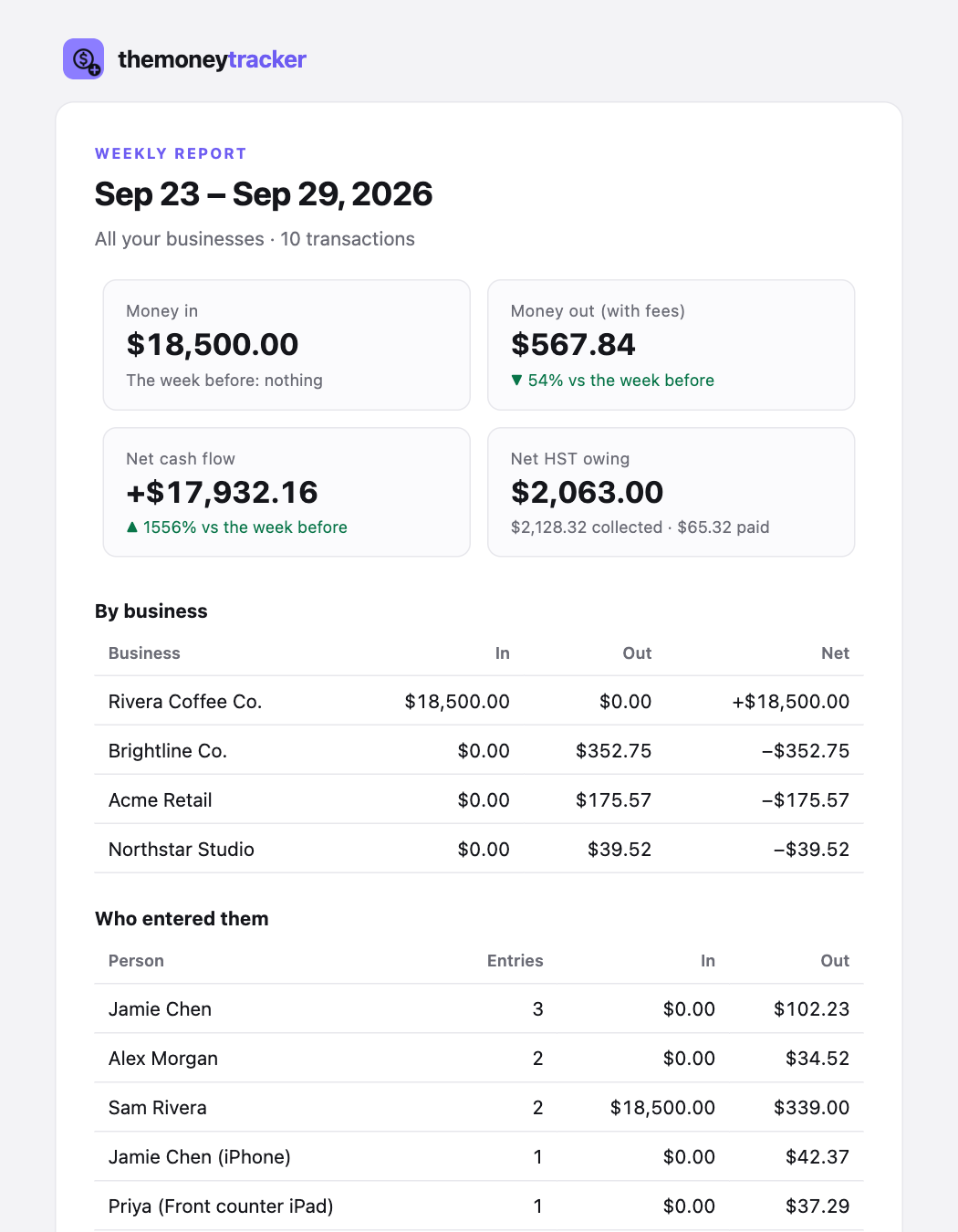
- Each report covers the period that just ended: a daily report the day before, weekly the past 7 days, monthly last month (sent on the 1st), quarterly last quarter (on the 1st of January, April, July and October), yearly last year (January 1).
- The key figures: income, spending (fees included), net cash flow and the net HST owing (or refund), each compared with the period before (“▲ 12% vs Monday”). They count money as the Overview and Reports do: transfers between your own accounts, the owner’s money, loans, HST payments and equipment aren’t income or spending, and the email names any it left out. Every transaction is still in the list and the PDF.
- By business (when there’s more than one), who entered them (each person and quick-add device, with their totals), where the money went (by purpose) and the transactions themselves (all of them when there are up to 25, else the largest).
- The PDF: the printable report with the summary, breakdowns and every transaction, ready to file or forward.
- Reports are for owners, co-managers and accountants (people who see a business’s full numbers). Employees don’t get them.
Change, pause or stop
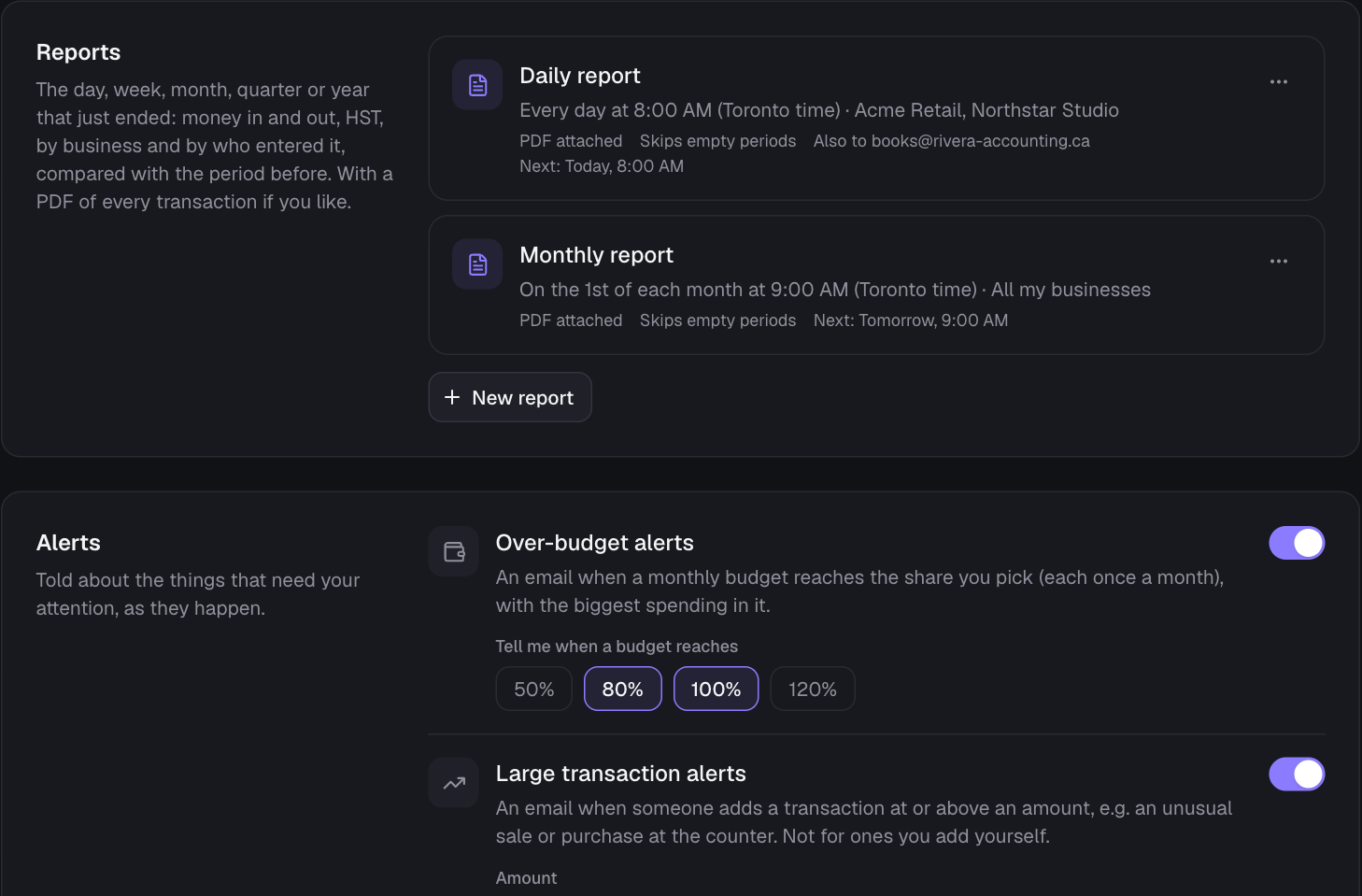
- Each report shows its schedule, businesses and when the next one goes out. Its ⋯ menu has Edit, Send me a copy now (for the period that just ended), Pause / Turn back on and Delete. Set up as many as you like (up to 20 emails).
- Every email has Pause this email at the bottom: it works without signing in and asks before it changes anything. People you added get Stop sending it to me instead, which only takes them off.
- If a report couldn’t be sent, its card says why.
Alerts
- Over-budget alerts: an email when a monthly budget reaches the share you pick (50%, 80%, 100% and/or 120%), once per budget and level each month, with the biggest spending in it. Covers your own books’ budgets and those of every business you see in full (shared ones too). Needs at least one budget (Budgets).
- Large transaction alerts: an email when someone adds a transaction at or above an amount you choose (money in or out), in all your businesses or the ones you pick, with its ID, who added it and from which device. Handy for unusual sales or purchases at the counter; ones you add yourself don’t count.
Reminders
- Plan renewal reminder: 1, 3, 7 or 14 days before your plan’s paid-through date, so your businesses never become view-only by surprise (plus a note if it ends).
- HST filing reminder: pick how often you file (monthly, quarterly or yearly) and how many days ahead; it includes the HST collected, paid and owed for the period.
When they arrive
Reports go out at the hour you pick (within a few minutes), in the time zone of the device you set them up on (daylight saving included). Alerts are checked every 5 minutes, and plan and HST reminders arrive at 9:00 AM Toronto time. If on-time sending isn’t running on the site yet, the Emails page says so and reports arrive once a day around 9 AM Toronto time instead. If a run is ever missed, only the latest report is sent, never a pile of old ones.
Still stuck? See Troubleshooting, or contact the person who runs this site.