Invoices & bills
Make invoices with hours, months or any items, send them to customers as a PDF, and keep track of what customers owe you and what you owe suppliers. Record a payment in two clicks and it’s added to your transactions, in the right business, with its share of the tax.
Open Invoices & bills in the menu (owners and co-managers; accountants can look). Owed to you lists invoices you’ve sent customers; You owe lists bills from suppliers. The two cards at the top show what’s outstanding, how much is overdue and what’s due this week; choosing one switches the list. The same figures appear on the Overview whenever something is unpaid.
Make an invoice to send
- 1Choose New invoice. The number (INV-1001, then INV-1002…), the due date and your usual message are filled in from Settings → Invoicing.
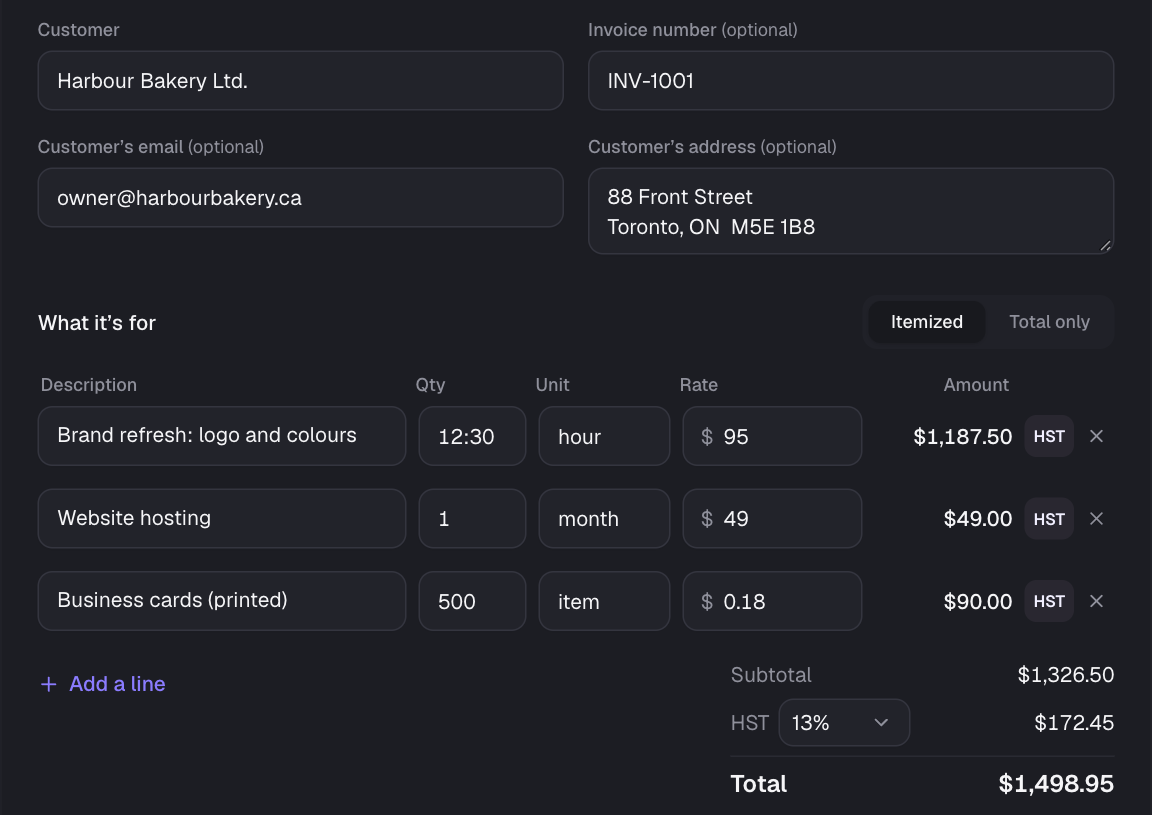
- 2Enter the customer. Under More details you can add their email and address (both print on the PDF; someone you’ve invoiced before brings them back), a message to them, private notes and a file.
- 3Add a line for each thing you charge for: what it’s for, how many, the unit (hour, day, month, item or any word) and the rate. 1:30 means an hour and a half and minutes bill exactly (0:20 at $90 an hour is $30.00); a negative rate is a discount. The amount, the subtotal, the HST and the total add up as you type. Pick the invoice’s rate under the lines; each line’s HST picker can give that line another rate (e.g. 5% GST on one item of a 13% HST invoice) or No HST (e.g. a cost passed on at no tax). With lines at several rates, the totals show the tax at each rate, and so does the PDF.
- 4Choose Add invoice, then Open PDF (on the notice, or inside the invoice) to see, print or save it.
- Email it sends it to the customer with the PDF attached: check the address, subject and message, then Send. It comes from The Money Tracker in your business’s name, and replies go to the email in Settings → Invoicing (or yours). Tick Send me a copy to get one too.
- Rather use your own email or phone? Share (on a phone or tablet) opens the share sheet with the PDF attached: Mail, Messages, WhatsApp and so on. On a computer, Send it from my own email instead downloads the PDF and opens an email to the customer, ready for you to attach it. (If the site’s email service isn’t set up, these are the ways to send it.)
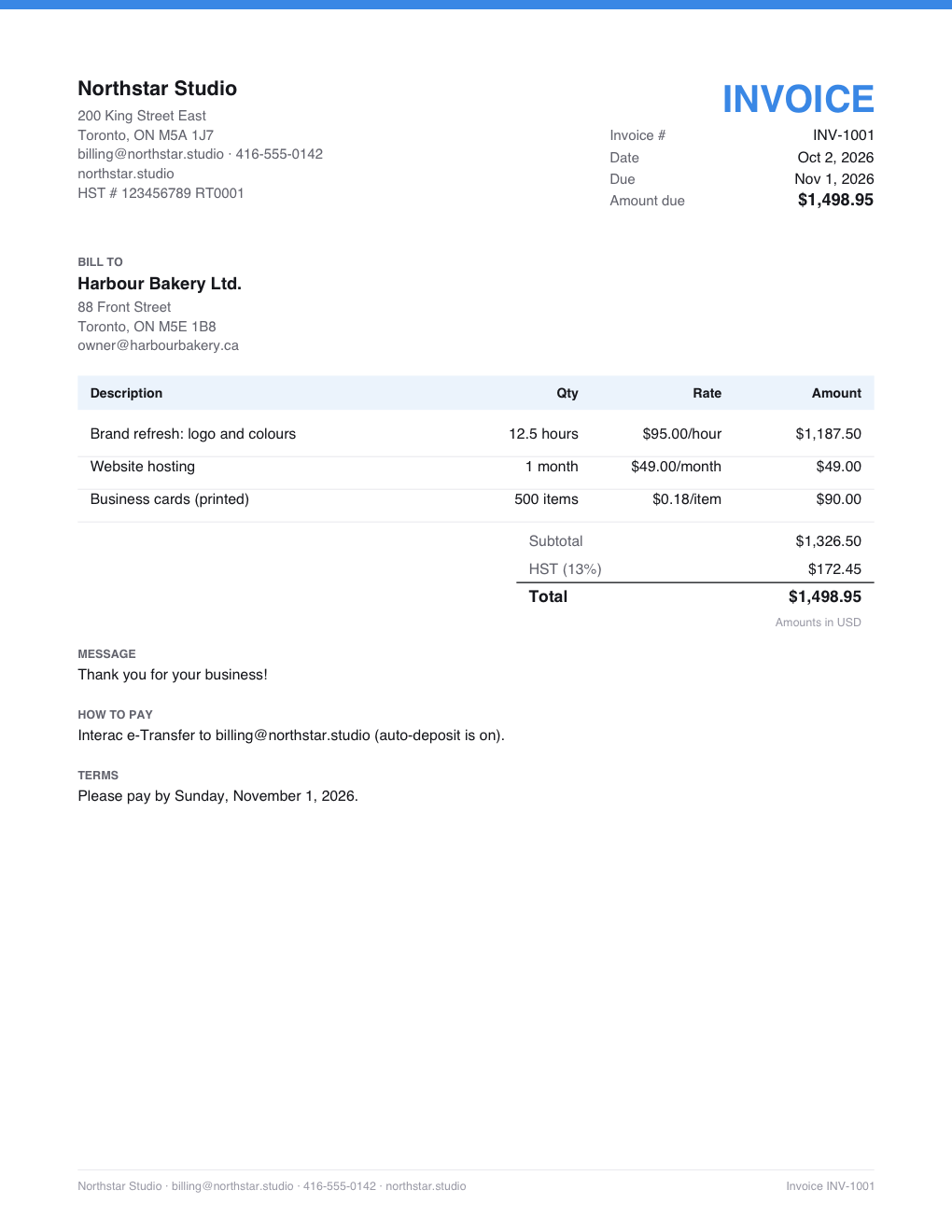
- The PDF shows your logo and details, the customer, each line with its quantity and rate, the subtotal, HST and total, anything already paid and the amount due, your message, how to pay and when. A paid invoice says PAID; a voided one VOID.
- Changed something? Open PDF, Email it and Share save it first, so the PDF is always up to date.
- ⋯ → Duplicate starts a new invoice with the same customer and lines, the next number, today’s date and the same terms: handy for monthly work.
- Already invoiced somewhere else? Switch to Total only and enter the total, as for a bill.
- Invoicing in US dollars or another currency? Choose it beside What it’s for; payments are then recorded in it too (see Other currencies).
Record an invoice or a bill you already have
- 1Choose New bill (or New invoice, then Total only). Enter the supplier (or customer), the total with tax (a calculation like 1000+130 works) and, if it has one, its number.
- 2The tax is worked out at the business’s rate, like a transaction’s; change the rate or the split if the invoice says otherwise.
- 3Set when it was sent (or received) and when it’s due: On receipt, 15, 30 or 60 days, a date of your own, or no due date. Pick the business and the purpose its payments should be filed under.
- 4Optionally attach the invoice or bill itself (a PDF or a photo, up to 4 MB), then choose Add invoice.
Record payments
- Record payment on a row (or inside the invoice or bill). The amount starts at what’s left; change it for a part payment. The payment is added to your transactions: income for an invoice, an expense for a bill, in its business, under its purpose, with its share of the tax (a $500 payment on a $1,130 invoice with $130 HST carries $57.52).
- Already in your transactions? (say, an e-transfer you imported): open the invoice, choose Already in transactions? and pick it. Only transactions in the same books, money in for invoices or out for bills, that aren’t paying something else are offered.
- Inside an invoice you see every payment with its date and ID, what’s been paid and what’s left. The × beside a payment takes it off this invoice; the transaction itself stays. A transaction that pays an invoice says so in its form, with a link back.
- Paid in full, it moves to Paid & void. Rows show Due in 3 days, Due today, Overdue 5 days (in red) or Paid Sep 30.
Void or delete
⋯ → Void keeps the invoice for the record but nothing is owed (a cancelled job, a disputed bill); Make unpaid again undoes it. Deleting removes it; its payments stay in your transactions.
Who sees them
Owners and co-managers see and manage the invoices and bills of their businesses; accountants see them read-only; your own without a business are yours alone. Employees don’t see them. Find any of them by customer, number or note, and narrow the list by business.
Still stuck? See Troubleshooting, or contact the person who runs this site.