Fees
Processing fees, late payment fees, bank charges: record them on the transaction they belong to, as an amount, a percentage or both.
Add a fee to a transaction
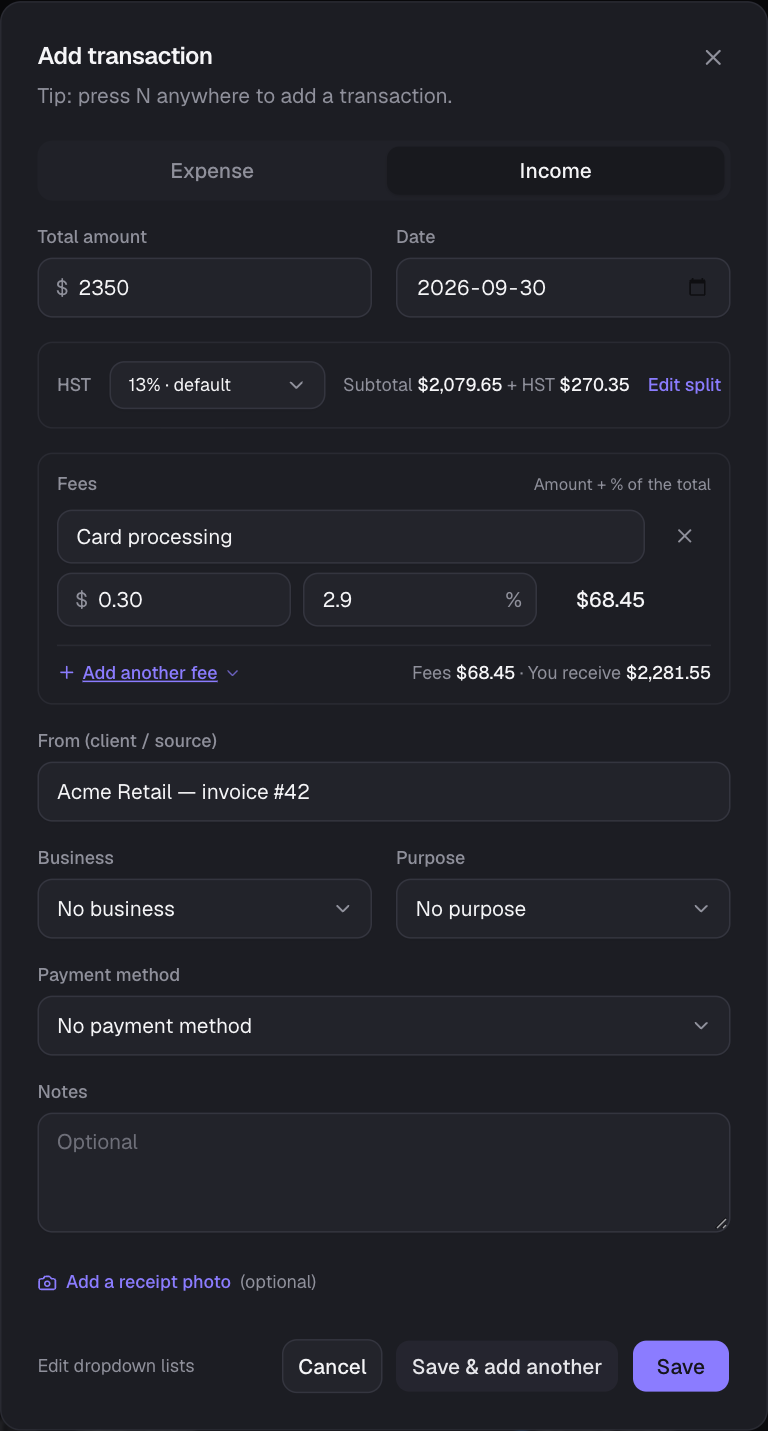
- 1In the transaction form, choose Add a fee (just under the HST box). Pick one of your saved fees, or Custom fee….
- 2Name it and enter a fixed amount, a percentage, or both. For example $0.30 + 2.9% for card processing. The percentage is taken from the transaction’s total (HST included), the way card processors charge it.
- 3The fee’s amount shows next to it, and a line underneath says what you pay in total (expenses) or receive after fees (income). Add as many fees as you need, or remove one with ×.
- 4Tick Save to my fees for next time to add a custom fee to your list, then choose Save.
How fees count
- Fees are a cost. A late fee on a bill adds to what you spent; a processing fee on a payment you received is money you didn’t keep. Either way it’s counted as spending.
- A fee on its own: for a charge with nothing else to it (a wire fee, a forex fee charged later), enter a total of 0 and add the fee. To keep it with the purchase it belongs to, add it as a linked transaction.
- A fee given back: enter a negative amount (e.g. −5.00 for a refunded fee); it comes off your spending. On a negative total (a refund), a percentage fee is negative too: the part of the fee returned with it.
- A transaction’s own total doesn’t change: an invoice paid for $200 stays $200 of income, and its $6.10 fee is added to your spending. In the list, the fee shows on a second line under the amount; hover the amount for the full split.
- Total spent, net cash flow, budgets and the spending breakdowns (by business, purpose and payment method) include fees.
- Fees carry no HST, so they don’t change your HST position.
- Find them with the Type filter: Anything with fees, Expenses with fees or Income with fees. CSV exports have Fees and Fee details columns.
Saved fees
Keep the fees you use often in Settings → Lists & defaults → Saved fees: add, edit, reorder or delete them. Choosing one in the form fills in its name, amount and percentage, and you can still change them for that transaction. Deleting a saved fee doesn’t change past transactions.
- Recurring payments can have fees too: every payment they record gets the same fees, worked out from its amount.
- CSV imports read a Fee column (as in PayPal and Stripe exports) and record it as a fee on that row.
- Currency conversion fees are a percentage of the amount: on a purchase in another currency, choose Add a conversion fee.
- In a shared business, the owner’s saved fees are offered. Co-managers and employees can add one-off fees but can’t change the owner’s list.
Still stuck? See Troubleshooting, or contact the person who runs this site.