Merchants
Everyone you buy from or get paid by, with what you spent, and the HST rate and defaults that fill in automatically.
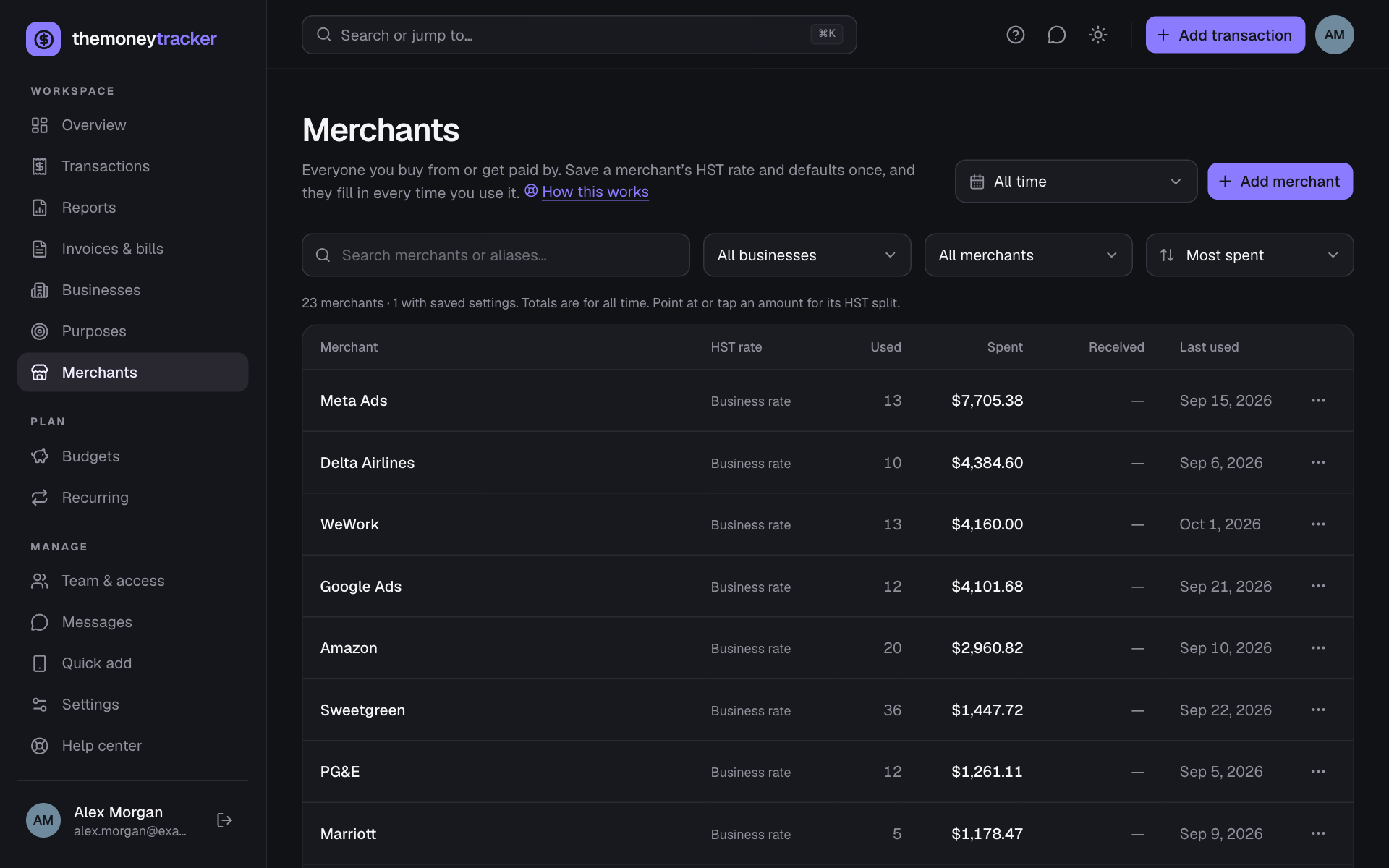
- Open Merchants in the sidebar. Every merchant you’ve used is listed, plus any you added ahead of time.
- Each row shows its HST rate (a saved rate, or “Business rate” when the business’s rate applies), what fills in automatically, how many transactions use it, the total spent and received (hover for the HST split), and when it was last used.
- Search by name or alias. Business shows only the merchants used with one business (or with no business), with that business’s totals. Show all merchants, ones you spend with, ones that pay you, ones with saved settings, or ones not used yet. Sort by most spent, most received, most used, recently used or name.
- Date range (top right, next to Add merchant): totals are for all time unless you pick a timeframe, such as last quarter or a custom range. “Last used” is always the most recent use.
- ⋯ → View transactions opens that merchant’s transactions.
Add a merchant ahead of time
- 1Choose Add merchant.
- 2Type its name. Optionally add aliases (text from bank statements, e.g. “AMZN MKTP”), and pick its HST rate and defaults.
- 3Choose Save. The next time you type that merchant in a transaction (or import it), its settings fill in.
Editing a merchant
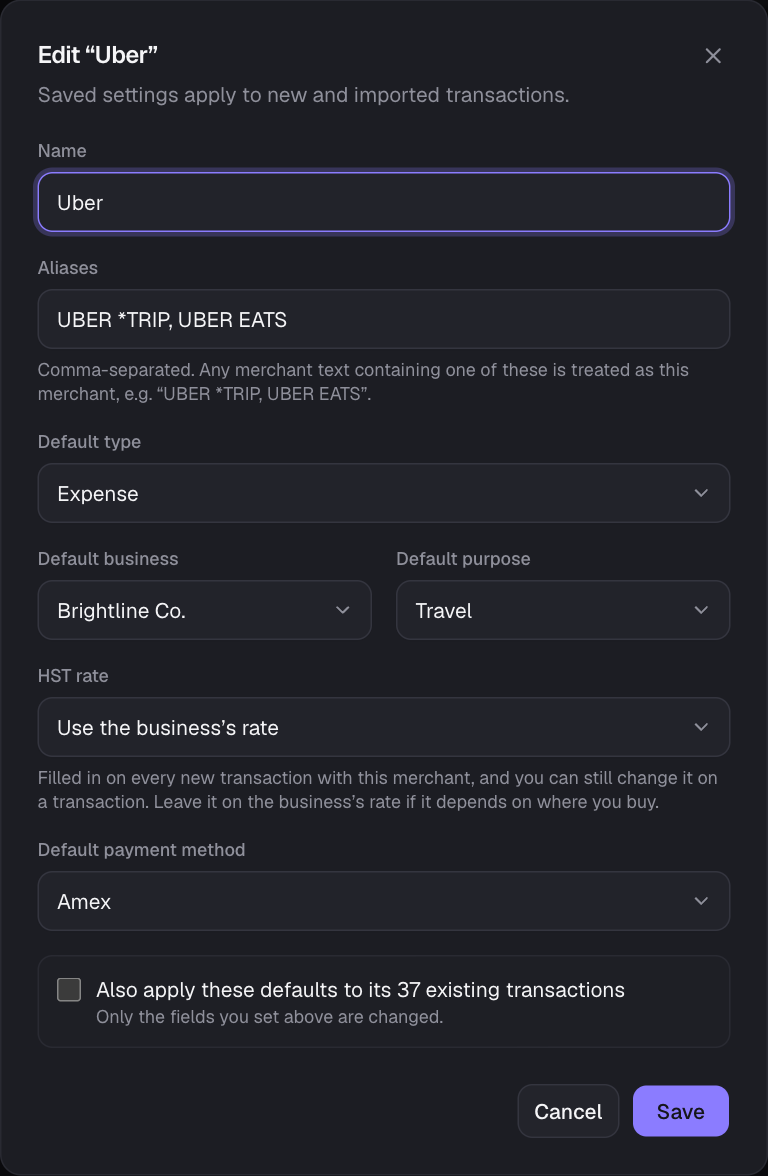
Click a merchant (or Add merchant) to open its settings:
- Name: renaming updates every transaction and recurring payment with that merchant. Rename to an existing merchant to merge them (e.g. “AMZN Mktp” → “Amazon”).
- Aliases: comma-separated pieces of text; any merchant text containing one is treated as this merchant, in the form and in CSV imports.
- Default type, business, purpose, payment method and HST rate: fill in automatically when you use this merchant. Use “No HST (0%)” for tax-exempt suppliers, and keep “Use the business’s rate” when the rate depends on the location. You can also save a rate straight from the transaction form (see how).
- Also apply these defaults to existing transactions: updates its past transactions in one go (only the fields you set).
- ⋯ → Remove saved settings clears its rate, aliases and defaults; its transactions aren’t touched.
Tip: You can also save a merchant’s rate while adding a transaction: see A fixed rate for a merchant.
Still stuck? See Troubleshooting, or contact the person who runs this site.