Budgets
Set monthly limits and see whether you’re on pace before the month ends.
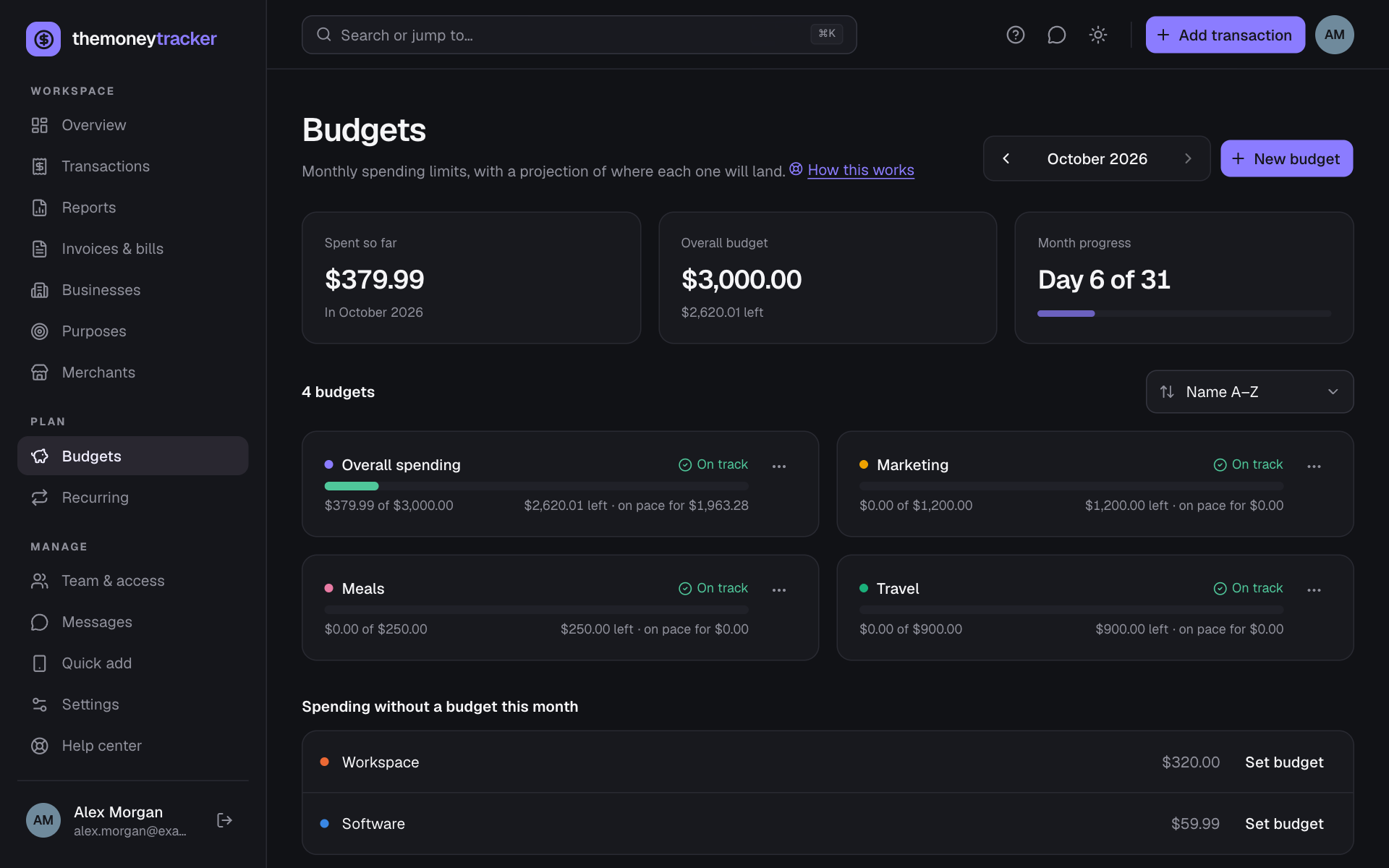
- 1Pick whose budgets to see at the top: All my books (everything in your own books, in your main currency) or one business (in its currency), including businesses shared with you.
- 2Choose New budget. Pick All spending (overall) or a purpose, and enter a monthly limit. If you have history, The Money Tracker suggests your 3-month average; choose Use this to fill it in.
- 3Each budget shows spent vs. limit (fees included), what’s left, and on pace for: where you’ll land at this month’s rate.
- 4Overall spending and Spent at the top count spending as the Overview and Reports do: transfers between your own accounts, the owner’s draws, loan payments, HST payments and equipment aren’t spending, so they’re left out (their fees aren’t), and a line names them. A budget for one purpose counts everything recorded with that purpose.
- 5Status: On track, Watch (85%+ used or on pace to go over) or Over budget.
- 6Use the arrows at the top to step through months, or click the month’s name to jump straight to any month and year. Spending without a budget this month lists purposes you might want to add.
- 7Change or remove a budget from its ⋯ menu.
- 8With three or more budgets, a Sort menu orders them by name, most used (% of the limit), most spent, largest budget or most left. The overall budget always stays first.
A business’s budgets
- A business’s budgets count every transaction in it, whoever added it, and use its owner’s purposes. They’re shared: the owner and co-managers set and change them, and accountants see them.
- All my books budgets cover your own businesses and transactions without a business. They stay private to you and don’t include businesses shared with you; give those budgets of their own.
Still stuck? See Troubleshooting, or contact the person who runs this site.