Importing transactions
Bring in bank downloads, Quicken files and spreadsheets without retyping.
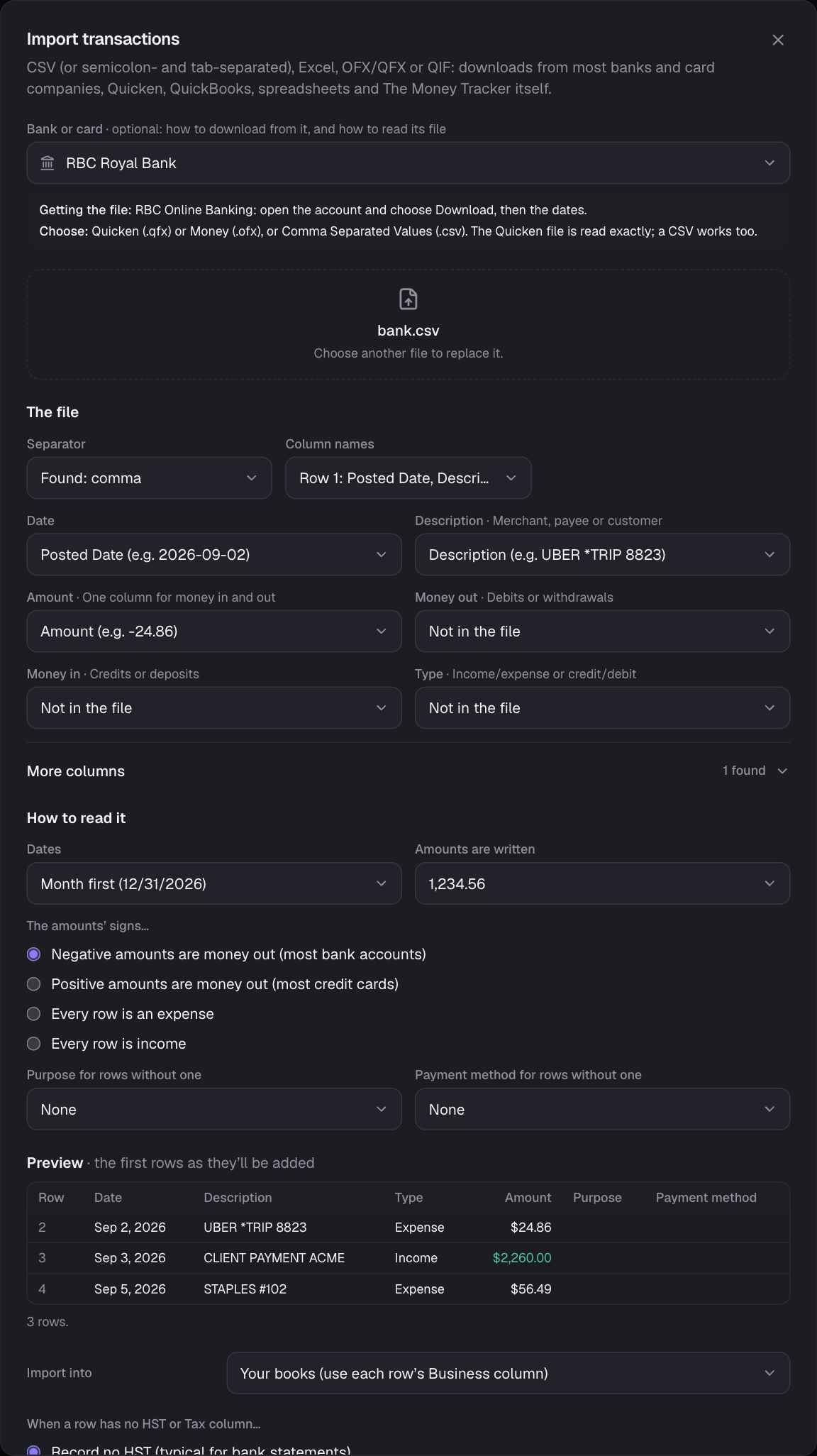
- 1On Transactions, choose Import. Optionally pick your bank or card (RBC, TD, Scotiabank, BMO, CIBC, National Bank, Desjardins, Tangerine, Simplii, Amex, Chase, Bank of America, Wells Fargo, Capital One, PayPal, Stripe, Wise and more): it says where to download the file in that bank’s online banking and which format to choose (the Quicken .qfx file, when offered, is read exactly), and reads its CSV the way that bank lays it out (some, like TD’s, have no column names). Many banks’ files are recognized by their columns even without picking one.
- 2Pick (or drop) the file: a CSV (commas, semicolons or tabs), an Excel workbook (.xlsx), an OFX or QFX file (your bank’s “Download for Quicken, QuickBooks or Money”), or a QIF file.
- 3The file: for a CSV or workbook, check which row has the column names (a bank’s account details above them are skipped), the sheet, and the separator, then say which column is the date, the description and the amount (or money out and money in). Columns with names it knows (in English, French, German or Spanish) are picked for you; More columns has tax, fees, business, purpose, payment method, notes, tags and currencies.
- 4How to read it: the dates’ order (month, day or year first; month names and 2026-12-31 always work), how amounts are written (1,234.56 or 1.234,56), and what one amount column’s sign means: negative is money out (bank accounts), positive is money out (credit cards), or every row an expense or income. A Type column (income/expense, credit/debit, CR/DR) wins where it says. Each is guessed from the file.
- 5Optionally, a purpose and a payment method for rows without one, e.g. your Visa for a Visa statement.
- 6The preview shows the first rows as they’ll be added, and which can’t be read and why.
- 7Keep Skip transactions already in The Money Tracker on to avoid duplicates (same date, merchant, amount and type; for a row in another currency, the same amount in that currency).
- 8Import into: your own books (each row’s Business column decides), or one business you own or co-manage, e.g. a partner’s business.
- 9When a row has no HST column: record no HST (right for most bank statements), or work it out from each merchant’s saved rate or the business’s rate if the amounts include HST.
- 10Choose Import. You’ll get a summary of what was added, skipped as duplicates, and any rows that couldn’t be read, with their row numbers in the file.
- 11Review and add purposes: the import’s transactions, grouped by merchant (“UBER *TRIP 8823 TORONTO ON” and “UBER *TRIP 1170 MONTREAL QC” are one). For each merchant, give it a readable name, choose its purpose (and payment method or business) once, and keep Remember ticked: the next import recognizes it, renames it and fills those in by itself. Open any transaction in the list below to add notes or a receipt. The list shows just that import until you close the review.
OFX, QFX and QIF files
- OFX/QFX: each transaction’s date, payee (the merchant), amount and memo (kept in its notes). The statement says what currency its amounts are in; a statement in another currency than its business’s is converted at the Bank of Canada rate for each date, like a CSV’s Currency column. A file with several accounts brings in all of them; import one account’s file per business when they belong to different ones.
- QIF: the bank, cash and credit card accounts’ transactions, with each one’s category as its purpose (transfers to another account, like [Savings], have none). Investment accounts, splits and memorized transactions aren’t read; a split transaction comes in as its total.
Columns The Money Tracker understands in a CSV
Any of these names are picked for you (they aren’t case sensitive); for others, choose the column yourself:
| Date (required) | Date, Transaction date, Posted date, Posting date, Booking date |
| Merchant (required) | Merchant, Description, Payee, Name, Details, Narrative |
| Amount (required*) | Amount, Value, Total, or separate Debit / Credit (Withdrawal / Deposit, Money out / Money in) columns |
| HST / tax | HST, GST, GST/HST, VAT, Tax, Sales tax, Tax amount, QST, PST (the tax part of the total) |
| Subtotal | Subtotal, Net, Net amount, Amount before tax (with Amount, the HST is the difference; without it, the total is subtotal + tax) |
| Fee | Fee, Fees, Fee amount, Processing fee, Transaction fee (e.g. PayPal and Stripe exports): recorded as a fee on that row; a Money Tracker export’s Fee details keep each fee’s name |
| Currency | Currency, Currency code, or in the amount column’s name (“Amount (EUR)”): what the amounts are in, when not the business’s currency. They’re converted at the Bank of Canada rate for each row’s date |
| Paid in another currency | Original amount and Original currency (credit card statements), or a Money Tracker export’s Paid in, Amount in that currency and Exchange rate: the amount stays as it is in the business’s currency and the original is kept with it |
| Type | Type, Kind (Income, Expense, Credit, Debit…) |
| Business | Business, Company, Client |
| Purpose | Purpose, Category |
| Payment method | Payment method, Payment, Method |
| Notes | Notes, Note, Memo |
| Tags | Tags, Tag, Labels, Label: several separated by semicolons or commas (“travel; client-acme”), up to 10 per row |
- Dates can be 2026-08-28, 08/28/2026 (or day first), or written like “Aug 28, 2026”. Amounts can include currency symbols, commas and brackets.
- Rows in another currency show both amounts in the list, like ones you add by hand. A row whose currency the Bank of Canada doesn’t publish is listed in the summary instead: import it into a business in that currency, or add it by hand with the rate.
- New business, purpose and payment method names in the file are created for you in your own books. When importing into someone else’s business, names are matched to the owner’s lists; unknown ones are left empty and listed in the summary.
- Your saved merchants apply: aliases clean up names (“UBER *TRIP 8823” → Uber) and their defaults fill any blank business, purpose or payment method.
- Not sure about the format? Choose Download a template in the import window. A Money Tracker CSV export can be imported back as-is.
- Files in UTF-8 or Windows-1252 (what many banks and Quicken use) are read correctly, accents included.
Good to know: Up to 20,000 rows and 20 MB per file. Split larger files and import them one after another.
Still stuck? See Troubleshooting, or contact the person who runs this site.