Messages & team chat
Chat with the people you work with and with the Money Tracker admin, or call them by voice or video. Mention any transaction by its ID and everyone in the chat sees it, as it is right now, and can open it to sort things out.
Who you can chat with
- The people in your businesses: the owner, co-managers and employees of any business you own or work in. Chat one to one, or pick several people for a group.
- The Money Tracker admin: always at the top of your list as Money Tracker admin, for questions, problems and requests. You can also reach it from New chat, Contact admin in the Help (?) menu and your account menu, Message the admin in the Help center, or by typing “admin” in Search or jump to (⌘ K).
- 1Open Messages in the menu (or the speech bubble at the top of the page).
- 2Choose New chat, tick one person (or several for a group; each shows their role, like “Employee · Acme Retail”) and choose Start chat. If you already have a chat with exactly those people, it opens instead.
- 3Type and press Enter to send (Shift + Enter for a new line; on a phone, the send button).
Every transaction has an ID
Each transaction gets a short ID the moment it’s saved, like T-7K3Q9M: the same for everyone, and it never changes. Say it out loud, paste it in a chat or type it in a search and it finds that one transaction.
- See it beside the title when you open a transaction (click it to copy it, discuss the transaction or link it), in the row’s ⋯ → Copy ID, and in the ID column of CSV exports.
- Find it by typing it in the Transactions search or in Search or jump to (⌘ K). Capitals don’t matter, and letters that look like digits are read as digits (O as 0, I and L as 1), so a mistyped ID still works.
Mention a transaction in a chat
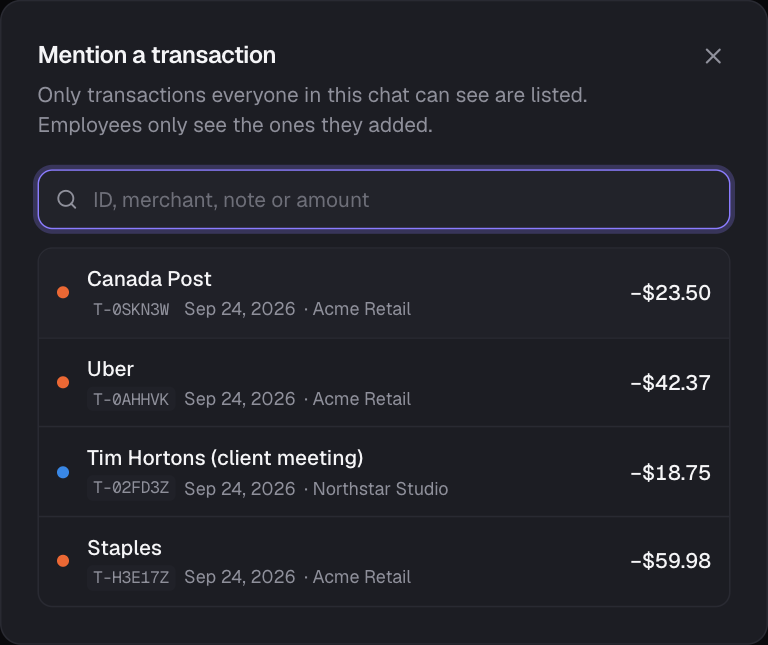
- 1Choose # beside the message box and pick the transaction: search by ID, merchant, note or amount. Its ID goes into your message. Or just type or paste the ID.
- 2Before you send, each ID shows under the box with its merchant and amount, or a note saying why it can’t be mentioned here (see below).
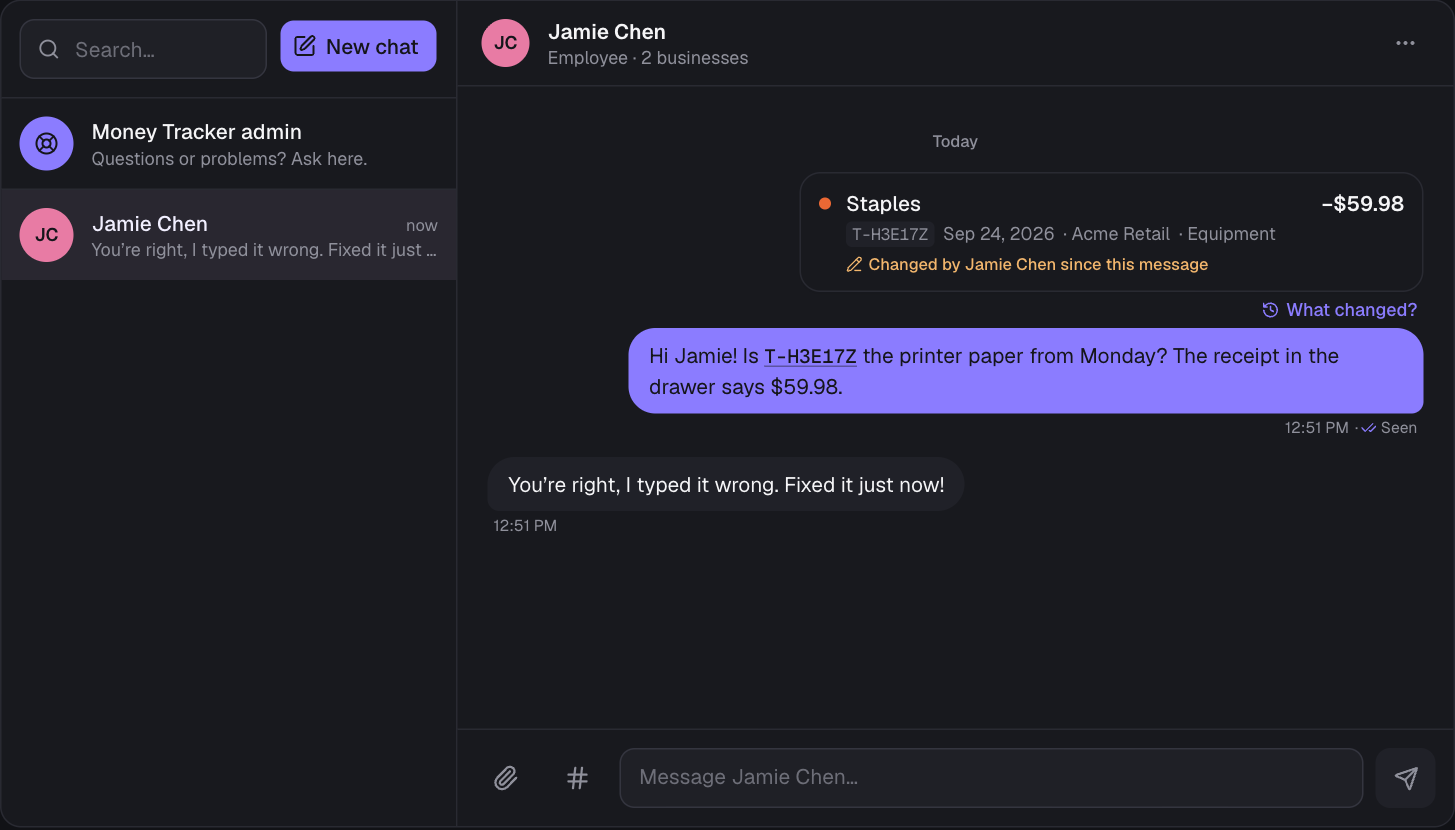
- 3Send. A card appears above your message with the merchant, amount, ID, date, business and purpose, and the ID in the text becomes a link. Mention up to 10 transactions in one message.
Cards are live: they always show the transaction as it is now, not as it was when it was mentioned. If it has been changed since the message was sent, the card says so (“Changed by Jamie Chen since this message”) with What changed? under it, which opens the transaction’s full history (each field before and after), so everyone can see exactly how a problem was fixed. A deleted transaction reads “was deleted”, with its History (and, for owners and co-managers, Restore).
Only what everyone in the chat can see
A transaction can only be mentioned where everyone in the chat is allowed to see it. That one rule keeps everyone’s view the same as everywhere else in The Money Tracker:
| In the chat | Transactions you can mention |
|---|---|
| Owners and co-managers | Anything in the businesses they share. Transactions without a business are private to their owner, so only the admin can be shown those |
| An employee | Only the entries that employee added themselves; the # picker only lists those |
| An employee in a group | Only that employee’s own entries, since everyone must be able to see them |
| The Money Tracker admin | Any transaction you can see, so the admin can check it for you |
- Trying to mention something someone can’t see is stopped before it’s sent, and tells you why, e.g. “Jamie Chen can’t see T-1WX9RT: employees only see the transactions they added.”
- If someone loses access later (they leave a business, or its plan ends), their card shows “isn’t visible to you” instead of the details.
Fix it from the chat
Click a card (or the ID in the message) and the transaction opens in the usual form, if you’re allowed to edit it: an employee can fix their own entries, owners and co-managers anything in their businesses. Save, and the card updates for everyone in the chat within seconds, marked as changed. If you can see it but not edit it, it opens in Transactions instead. Nothing is edited by a message: people make the change themselves, and every change is recorded in the transaction’s history.
Start from a transaction: Discuss in chat
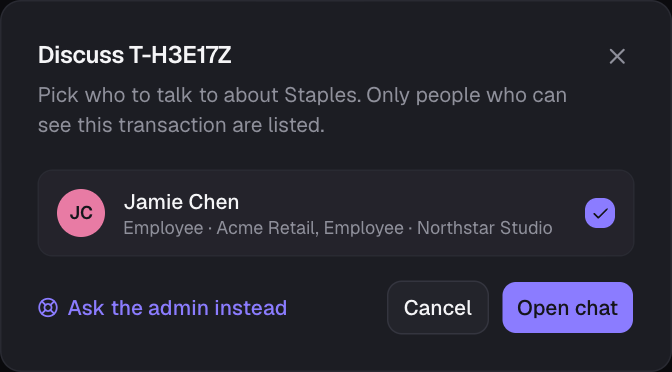
- 1In a row’s ⋯ menu choose Discuss in chat… (or click the ID beside a transaction’s title).
- 2Only the people who can see that transaction are listed. Tick one or more (or choose Ask the admin instead) and choose Open chat.
- 3The chat opens with the transaction’s ID already in the message box: add your question and send.
Ask a manager (employees and accountants)
Working in someone else’s business? Send its managers (the owner and co-managers) a question or a request without having to know who they are: to fix or remove an entry you can’t change any more, to ask how to record something or about a report, or anything else.
- 1On Transactions (My entries) choose Ask a manager, or in a row’s ⋯ menu (or a transaction you’re viewing) choose Ask a manager… to ask about that one.
- 2Pick the business (if you work in more than one), what it’s about (Fix an entry, Remove an entry, A question or Something else) and write your message. It says who it goes to.
- 3Send. It arrives in your chat with exactly those managers (started if needed), with the transaction as a card they can open and fix, and their answer comes back there. Open chat on the confirmation takes you to it.
Link transactions by their IDs
- Open a transaction, click its ID and choose Link to another transaction…, then search for the other one by its ID (or merchant, note or amount). Transactions in the same books that you can edit can be linked.
- In a chat, a message that mentions two or more transactions you can edit offers Link these under its cards: one click links them into a group. See Linked transactions.
Unread messages, notifications and drafts
- New messages appear in the chat on their own within a couple of seconds. Anywhere else in the app, a small card tells you who wrote, Messages in the menu shows how many are waiting, and the browser tab shows the count, like “(1) The Money Tracker”.
- A message only counts as read once you’ve actually seen it: with the chat on screen and its window in front of you.
- Under your latest message, Seen means the other person has read it; in a group it says Seen by everyone or who has, like Seen by Sam.
- Desktop notifications (optional): choose Desktop notifications at the top of Messages and allow them when your browser asks. New messages then pop up even while you’re in another tab or app.
- Attach screenshots, photos, PDFs, Word, Excel or text files with the 📎 button, by pasting a screenshot, or by dropping files on the chat: up to 5 files (4 MB together) per message. Big pictures are shrunk for you.
- Left in the middle of a message to add a transaction? Your unsent text and files are kept for each chat: come back and carry on.
Voice and video calls
- 1In any chat, choose the phone (voice call) or camera (video call) at the top right. Allow your microphone (and camera) when your browser asks.
- 2Everyone else in the chat is told “Sam is calling” with a Join button, wherever they are in The Money Tracker (and in another tab or app, if they’ve turned on desktop notifications). The chat shows the call as Going on now, with Join.
- 3End it: in a call between two people (and with the admin), End call hangs up for both, like a phone. In a group, Leave takes you out and the others carry on; whoever started the call (or an admin) can also choose End for everyone from the arrow beside Leave, which closes the call for everyone in it. A call also ends when the last person leaves. The chat keeps a note of it: Ended · 12 min, or Missed (No answer for the caller) if nobody joined.
- The call window floats over the app, so you can keep working while you talk: open the transaction you’re discussing, fix it, chat. Drag it by its title bar, make it full size, or tuck it away (–): a green On a call pill brings it back. On a phone it fills the screen until you tuck it away.
- The controls at the bottom of the call: camera and microphone, devices, share your screen (on a computer; phones can’t share), chat (with emoji, and earlier messages for anyone who joins late), reactions, raise your hand, background blur or a background image, picture in picture and your connection quality. A voice call starts with cameras off; anyone can turn theirs on.
- Whiteboard: the pencil-and-ruler button at the top of the call opens the call’s own whiteboard in a window beside it (a new tab on a phone), and everyone else in the call is offered it with an Open button. Draw, write, add shapes, arrows and sticky notes together, with everyone’s cursor shown live (Excalidraw; private to the call and end-to-end encrypted). A dot on the button means it’s in use.
- Whoever started the call (and both people in a one-to-one call) is an organiser: they can also mute or remove people and, in a group, split it into breakout rooms from the people list.
- One call per chat: calling while one is going on joins it. Up to 20 people, and a call closes after 3 hours. Reloading or closing the tab drops you from the call (your browser asks first); rejoin from the chat.
- Each call has its own private room that only the people in that chat can enter, and it’s deleted when the call ends. Calls aren’t recorded.
Groups and leaving
In a group, names show above messages. The people icon at the top of the chat lists who’s in it and their roles, and Leave this chat takes you out (one-to-one chats stay). A chat becomes read-only for you once you no longer work in a business with anyone in it; its history stays.
For the developer
- Admin → Messages (only the developer has it) lists every conversation with the admin, newest first, with unread counts; filter by unread, open or resolved, or search. New message to… starts one with anyone (also from an account’s ⋯ menu, their record in Data, or the Tree). You’re told about new messages from anyone, including while you’re reading another conversation.
- Transactions people mention show as cards; click one to open its record in Data. You can mention any transaction the person can see (the # picker lists theirs).
- Beside the chat you see who they are: their plan, businesses and latest entries, with shortcuts to their account, all their data and their tree, so you can fix things and reply without leaving.
- Mark resolved when it’s dealt with; if they write again, it opens again.
- If you also run businesses yourself, your own team chats are in Messages under My books.
- Calls (voice and video, in every chat, including with the people who message the admin) run on Daily (daily.co). They’re off until you add a free Daily API key: create an account at dashboard.daily.co, copy the API key from Developers, and add it in Vercel → Settings → Environment Variables as DAILY_API_KEY, then redeploy. The free plan includes 10,000 participant minutes a month (a 30-minute call between two people uses 60). Until it’s set, only admins see the call buttons, with these steps.
Still stuck? See Troubleshooting, or contact the person who runs this site.