Exporting CSV, Excel & PDF
Take your data anywhere, laid out the way the other end needs, or hand someone a tidy report.
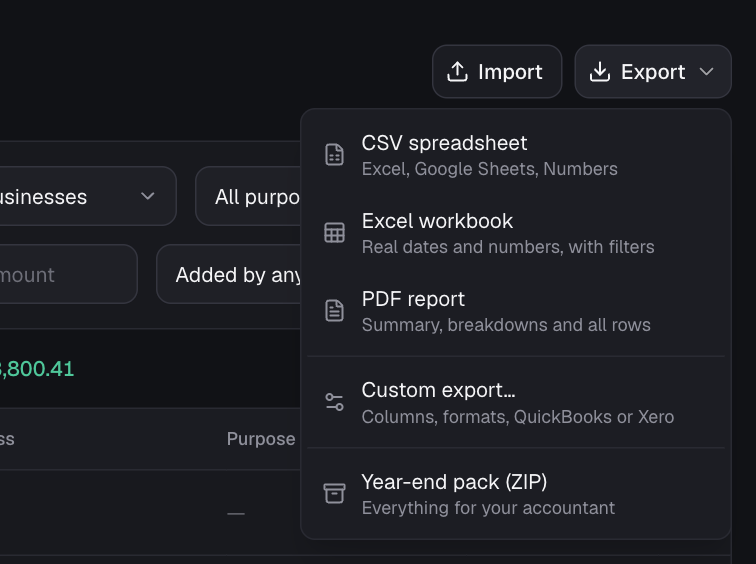
- Transactions → Export exports exactly what your filters show (“Export filtered”).
- Dashboard → Export exports the selected business and date range.
- Settings → General → Export all transactions exports everything.
- Export selected: tick transactions in the list and export just those.
- CSV spreadsheet: every column (ID, date, type, merchant, subtotal, HST, total, fees, business, purpose, payment method, who added it, notes, tags, receipts and any other currency), the way The Money Tracker’s import reads it back. Opens in Excel, Google Sheets and Numbers.
- Excel workbook: the same columns, with real dates and numbers, the column names kept in view and filters on them.
- Custom export…: choose CSV, Excel or PDF; a layout (everything, simple, for an accountant, or ready for QuickBooks Online’s or Xero’s bank import); which columns and in what order; how dates are written (2026-01-31, 01/31/2026, 31/01/2026 or Jan 31, 2026); amounts as recorded with a Type, money out negative, or in money in and money out columns; and for a CSV the separator (comma, semicolon or tab), the decimal mark and the column names row. Your choices are remembered.
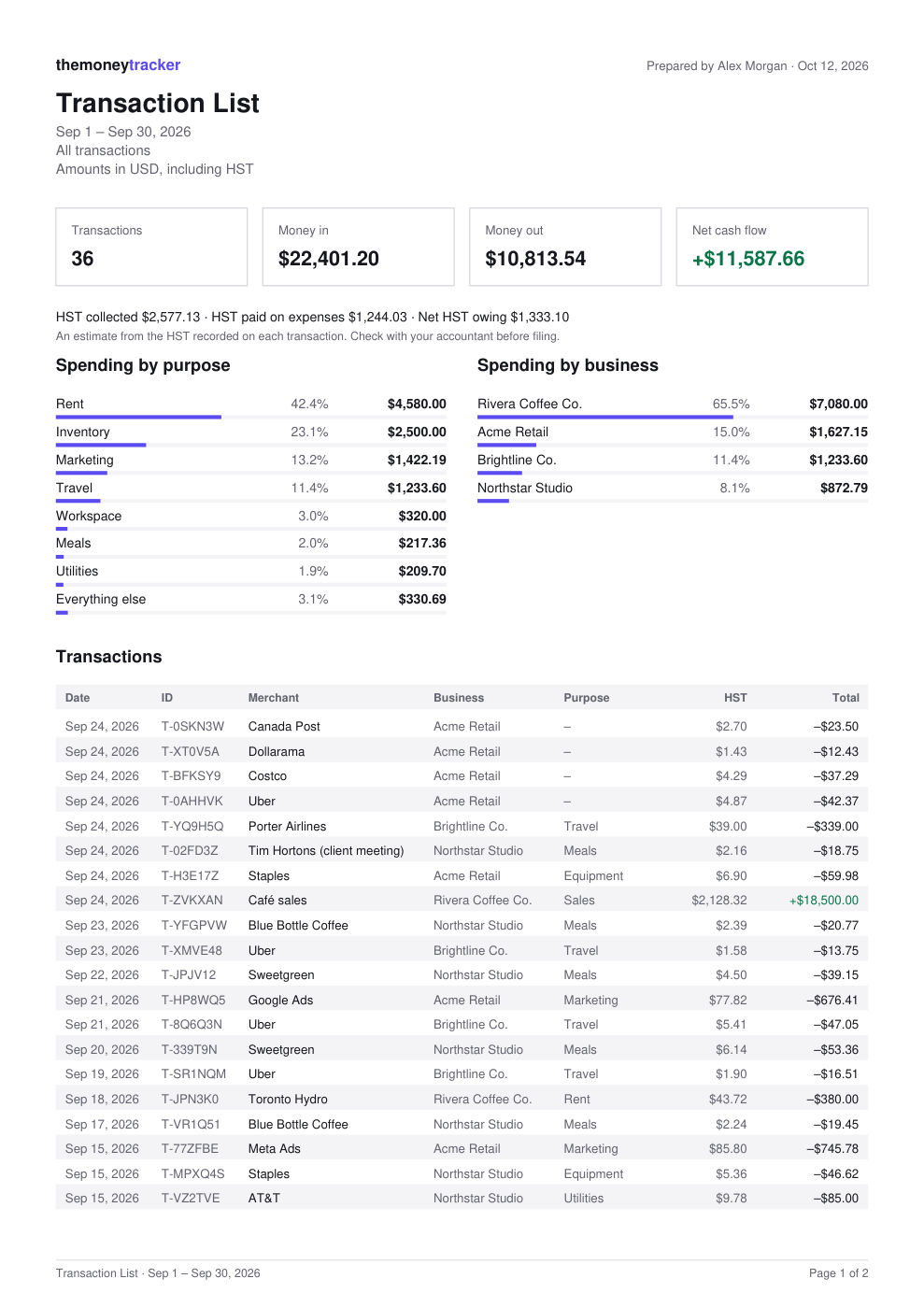
- PDF: an A4 transaction list with the period and filters, money in, money out (fees included) and net cash flow, the HST collected, paid and net owing (or refund), spending by purpose and by business, and every transaction with its date, ID, HST, fees and total, with the title, period and page number on every page.
- Exports only ever contain what you’re allowed to see: an employee’s export has just their own entries.
Year-end pack
Everything your accountant asks for at year end, in one ZIP file. Owners, co-managers and accountants find it on the Reports page, and under Export → Year-end pack (ZIP) on Transactions or the Overview.
- 1Pick the period (last year is chosen for you; this year so far, earlier years, or other dates for a fiscal year) and the business (or all you see).
- 2Choose Download pack. It takes a few seconds (longer with many receipts); a bar shows how far along it is.
- Summary.pdf: an income statement (revenue, expenses and fees, from what was received and paid to the figures before HST, and the net income), the HST collected, paid and net owing (or refund), totals by month, by purpose and by business, and the accounts receivable and payable (unpaid invoices and bills) at the end of the period. It counts money as the Reports page does: transfers between your own accounts, the owner’s money, loans, HST payments and equipment aren’t revenue or expenses (equipment’s HST still counts), so they’re listed apart under Not income or expenses, with what went in and out.
- Transactions.pdf and Transactions.csv: every transaction with its ID, totals, tax, fees, business, purpose, payment method, the invoice it pays, who added it, its tags and its receipt file names.
- Invoices and bills.csv: what was paid by the end of the period and what was still owed. Change history.csv: every recorded change to those transactions (who, when, how, each field before and after). Deleted transactions.csv: what was deleted, by whom.
- Receipts folder: every receipt and file (photos, PDFs, Word and Excel files), named by date, ID and merchant (e.g. 2025-03-14 T-7K3Q9M Costco.jpg, then Costco (2).pdf for a second file), plus a README that explains the files.
- The pack only ever contains businesses you see in full; employees don’t get it.
Still stuck? See Troubleshooting, or contact the person who runs this site.